
The UNO Reverse Car Transition Edit is a creative AI video trend where a playing card reveals a stylish sports car. Using your personal photo, a reference video, and Google Flow AI, you can create this cinematic effect without owning a luxury car.
In this article, you’ll learn how to create the video with a simple AI prompt and prepare it for Instagram Reels.
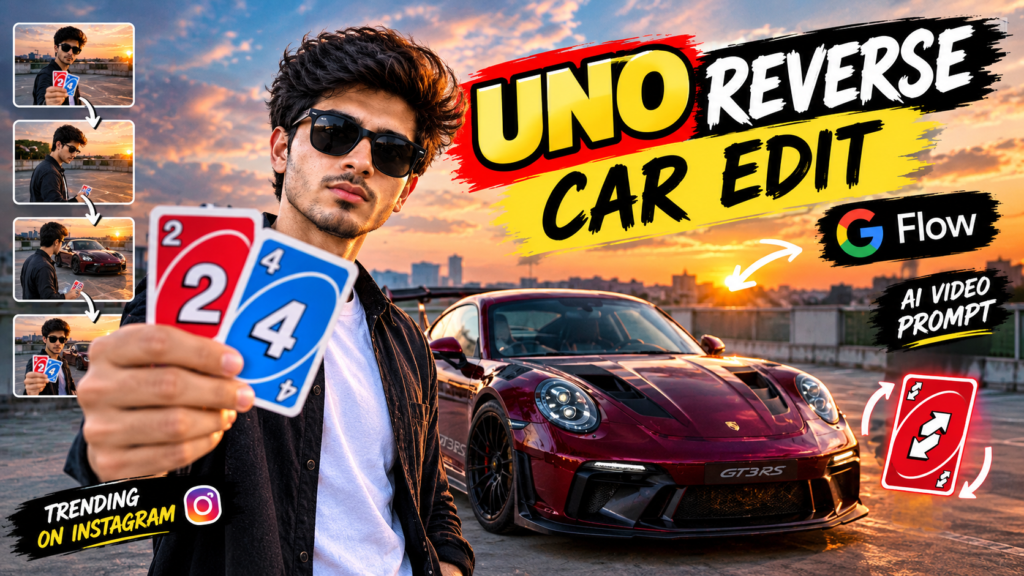
UNO Reverse Car Transition AI Video Prompt
“`htmlUNO Reverse Car Reference Video
What Is the UNO Reverse Car Transition Edit?
The UNO Reverse Car Transition is an AI video concept in which a playing card becomes the main element of a scene transformation.
Imagine standing in an outdoor parking area during sunset. You hold up two cards toward the camera and then lower your hand. As the cards move down, a beautiful sports car appears behind you.
You turn toward the car, gesture at it, and raise the cards again to finish the scene.
The result is a short, cinematic video that looks like a creative transformation rather than an ordinary recording.
You can experiment with different cars, locations, outfits, and lighting conditions to make the video feel personal. For example, you could choose a dark red sports car, a modern parking garage, or a dramatic sunset background.
The main goal is to make the card movement and car reveal look smooth and believable.
Why Are Creators Trying This AI Video Effect?
Short videos with unexpected visual changes can capture attention because viewers want to see what happens next. The card movement creates anticipation, while the appearance of the car provides the main visual surprise.
Here are a few reasons why this concept is useful for social media creators:
- Easy to personalize: You can use your own photograph as the character reference.
- Luxury car visuals: Experiment with sports cars without filming a real vehicle.
- Creative transitions: Use a simple hand movement to introduce a dramatic scene change.
- Short-form content: The concept works well for Instagram Reels and other vertical video platforms.
- Different creative styles: Try sunset lighting, nighttime scenes, colorful backgrounds, or different car designs.
Remember that using AI does not guarantee that a video will go viral. The final result depends on the visual quality, timing, creativity, and how well the video connects with your audience.
What Do You Need to Create the UNO Reverse Car Video?
Before starting, prepare the following materials.
| Requirement | Why You Need It |
|---|---|
| Clear personal photo | Helps establish your facial appearance and identity |
| Reference video | Provides guidance for the actions, timing, and camera composition |
| Google Flow | Allows you to experiment with AI video generation |
| Detailed video prompt | Describes the scene, movement, car reveal, and visual style |
| Video editor | Helps trim the result and prepare it for social media |
Your photograph should show your face clearly and have enough visible detail for the AI tool to interpret your appearance.
A reference video is helpful when you want to reproduce a particular sequence of movements. However, the result may differ from the original because AI-generated videos do not always reproduce every detail perfectly.
How to Create an UNO Reverse Car Transition Video Using Google Flow
Follow these steps to create your own version of the trend.
Step 1: Prepare Your Personal Photo
Choose a clear photograph of yourself with good lighting. A front-facing or slightly angled photo can work well if your face is clearly visible.
If you want the final video to preserve your original clothing, use a photograph in which your shirt, trousers, and other visible clothing are easy to identify.
Avoid heavily filtered images or photographs in which your face is hidden by sunglasses, shadows, or other objects.
Step 2: Prepare a Reference Video
A reference video can help you plan the order of the actions.
Look for a clip that demonstrates the movements you want to recreate, such as showing two cards, lowering your hand, revealing a sports car, and gesturing toward the vehicle.
Pay attention to the camera angle, character position, background, and timing of the transformation.
Use a video you created yourself or one you have permission to use as a reference.
Step 3: Open Google Flow
Visit the official Flow website and open the video-generation tools available to your account.
Google Flow: Google Flow AI Video Generator
Sign in with your Google account if required. The available features, generation limits, and supported input types may vary depending on your account and Google’s current settings.
Step 4: Choose the Available Video Workflow
Select an image-to-video, reference-based, or other suitable workflow if it is available.
Upload your personal photograph and add the reference video if the selected workflow supports it.
If you cannot upload both files in the same generation, use the available workflow that best supports your intended result. You may also need to create the scene in separate clips and combine them later.
Step 5: Copy and Enter the AI Video Prompt
The prompt tells the AI how the video should look and what actions should happen.
For this concept, the most important details are your appearance, the playing cards, the car reveal, the camera movement, and the continuity between scenes.
You can use the original prompt below as a starting point. Adjust it if your video generator has different input requirements.
UNO Reverse Car Transition AI Video Prompt
Copy the following prompt and customize it for your photo and reference footage.
Create an ultra-realistic cinematic video using my uploaded personal photo as the identity reference and my uploaded reference video as the guide for the scene sequence, actions, timing, and camera composition.
IDENTITY AND APPEARANCE
Use my uploaded personal photograph as the primary reference for my face, facial features, hairstyle, hair texture, skin tone, body proportions, and natural appearance. Keep my identity consistent throughout the video.
Use the clothing shown in my personal photograph as the clothing reference. Preserve the visible shirt, T-shirt, trousers, footwear, and accessories where applicable. Do not copy the original character’s clothing or invent a different outfit. Keep the colors and overall appearance consistent from beginning to end.
SCENE 1: OPENING SHOT
Recreate an outdoor parking scene during sunset. Position me naturally in the foreground, facing the camera. Use warm evening light, realistic shadows, and a cinematic background.
Match the general framing, character position, and camera perspective of the reference video. Keep the scene natural and photorealistic.
SCENE 2: SHOWING THE CARDS
I turn naturally toward the camera and raise one hand, holding two realistic playing cards displaying the numbers 2 and 4.
The cards should have accurate rectangular shapes, clearly visible numbers, realistic printed surfaces, and natural movement. My fingers should hold the cards correctly without distortion.
Keep my facial appearance and clothing unchanged while I perform the action.
SCENE 3: SPORTS CAR REVEAL
I slowly lower the cards. At the same moment, a realistic dark burgundy-red Porsche 911 GT3 RS-style sports car becomes visible behind me in the same parking area.
Make the appearance of the car feel like a smooth cinematic transformation. Synchronize the reveal with the downward movement of my hand.
The vehicle should have realistic proportions, detailed bodywork, natural reflections, accurate wheels, and lighting that matches the sunset environment.
Avoid sudden background changes or unnatural distortions.
SCENE 4: REACTION AND GESTURE
After the car appears, I turn my head toward it and naturally gesture in its direction.
Keep the movement relaxed and realistic. Maintain consistent facial features, body proportions, clothing, lighting, and camera perspective.
The car should remain clearly visible behind me.
SCENE 5: ENDING ACTION
I raise the two playing cards again, following the general ending action shown in the reference video.
Maintain continuity between the opening and ending shots. Keep the same parking area, sunset atmosphere, sports car, and character appearance.
VISUAL STYLE AND QUALITY
Photorealistic live-action appearance, cinematic sunset lighting, realistic hands and fingers, natural body movements, detailed sports car surfaces, smooth transitions, consistent shadows, and believable reflections.
Use stable character identity and avoid facial distortion, extra fingers, malformed playing cards, duplicated objects, flickering details, or sudden changes in clothing.
Do not add unrelated characters, unnecessary props, or additional scenes.
AUDIO
Generate a completely silent video with no dialogue, narration, music, or sound effects.
FINAL INSTRUCTION
Use my personal photograph as the identity and clothing reference. Use the reference video as guidance for the action sequence and composition. Create a visually consistent car reveal in which the sports car appears as I lower the playing cards.
Step 6: Generate and Review the Video
After entering the prompt, start the generation process using the available settings.
Once the result is ready, watch the entire clip before using it.
Check the following details:
- Does your face remain consistent throughout the video?
- Do the playing cards look realistic?
- Does the car appear at the right moment?
- Are the hand movements natural?
- Does the lighting match the background?
- Are there any unwanted changes to your clothing or surroundings?
If the result is not satisfactory, simplify the prompt or regenerate the video. You can also create the opening and car reveal separately if your chosen workflow produces better results with shorter scenes.
AI video generation may introduce visual errors, so reviewing the output is an important part of the process.
Best Settings for Instagram Reels
After generating your video, prepare it for vertical viewing.
| Setting | Suggested Choice |
|---|---|
| Aspect ratio | 9:16 vertical |
| Video duration | Around 5–10 seconds |
| Visual style | Cinematic and photorealistic |
| Main subject | You and the sports car |
| Lighting | Sunset or warm evening light |
| Camera movement | Smooth and natural |
| Audio | Silent generation; add audio later if desired |
| Final editing | Trim unnecessary frames and improve timing |
These are suggested creative settings rather than mandatory requirements. Choose the duration and resolution supported by your generation and editing tools.
Make the Opening Interesting
The first few seconds should clearly show you and the playing cards. Avoid unnecessary movements before the main action begins.
Keep the Car Reveal Smooth
The car is the main visual surprise, so make sure it appears clearly when the cards move down. If the transformation happens too quickly or the vehicle looks distorted, try adjusting the prompt.
Add Music During Editing
Although the AI prompt above requests silent output, you can add suitable music or a transition sound effect later in your video editor.
Try synchronizing the beat with the moment the car appears. Keep the sound at a comfortable level and use audio you are allowed to use on your chosen platform.
Export in Vertical Format
A 9:16 video is a suitable choice for Instagram Reels. Before publishing, check that your face, cards, and car remain visible and are not hidden by interface elements.
Common Problems and How to Fix Them
Even a detailed prompt may not produce the expected result on the first attempt. Here are some common problems and possible solutions.
| Problem | Possible Solution |
|---|---|
| Face changes between frames | Use a clearer identity reference and reduce unnecessary character movements |
| Cards look distorted | Describe the cards clearly and keep the hand action simple |
| Car appears too early | Specify that the car reveal must happen as the cards move downward |
| Clothing changes | Emphasize the uploaded photograph as the clothing reference |
| Background changes suddenly | Describe one continuous location and consistent lighting |
| Hand movements look unnatural | Reduce complicated gestures and regenerate the scene |
| Video feels rushed | Use a slightly longer clip or create separate scenes for editing |
Remember that prompts guide the generation process but cannot guarantee perfect results. The available reference controls and video-generation model also affect the outcome.
Tips for Making Your Car Transition More Creative
Once you understand the basic process, you can experiment with your own ideas.
Try different car colors: A black, silver, blue, or burgundy sports car can give the video a different appearance.
Change the environment: Experiment with an outdoor parking area, a modern garage, or a city street at night.
Use consistent lighting: Make sure the car’s reflections and shadows fit the environment.
Keep your movements simple: A clear card gesture is easier to follow than several complicated actions.
Create a strong ending: Finish with the car clearly visible and your reaction naturally directed toward it.
Avoid excessive effects: Too many flashes, camera shakes, and visual effects can distract viewers from the main transformation.
The best approach is to start with a simple version and add creative details only when they improve the final result.
Frequently Asked Questions
1. What is the UNO Reverse Car Transition Edit?
It is a short-form video concept in which playing cards are used as the visual trigger for a dramatic scene change, often revealing a luxury sports car.
2. Can I create this video using my own photo?
Yes, you can try using your personal photograph as an identity reference if the video-generation workflow supports image uploads. The final result may vary.
3. Is Google Flow suitable for creating car transition videos?
Google Flow offers AI video-generation tools that can be used to experiment with cinematic scenes and transitions. The specific workflow and available features depend on your account and the current tool settings.
4. Do I need to own a sports car?
No. You can experiment with an AI-generated sports-car scene without filming a real vehicle.
5. Which aspect ratio should I use for Instagram Reels?
A vertical 9:16 aspect ratio is a practical choice for full-screen Reels. Check the export settings in your video editor before publishing.
6. Why does my AI-generated face sometimes look different?
AI-generated videos can change facial details during movement. Use a clear reference image, emphasize identity consistency in the prompt, and review the generated result carefully.
7. Can I use this video for my Instagram page?
You can publish your own AI-generated creation, subject to the platform’s rules and any applicable rights involving the reference footage, music, logos, and other materials. Avoid presenting a fictional AI-generated scene as genuine footage if that could mislead viewers.
Final Thoughts
The UNO Reverse Car Transition Edit is a fun idea for creators who want to experiment with AI-generated car videos. By combining a clear personal photograph, a suitable reference video, and a detailed prompt, you can try transforming a simple parking scene into a cinematic sports-car reveal.
Google Flow can help you explore the visual concept, while a video editor can improve the timing and presentation. You may need a few attempts to get the hand movements, card details, and car appearance looking right.
Start with the basic prompt, check the result carefully, and experiment with different cars and backgrounds to develop your own style.
Ready to try the trend? Open Google Flow, prepare your reference materials, and create your own version of the UNO Reverse Car Transition.

Pratiksha Thakare is a Vedic astrology writer and spiritual researcher with deep study in Jyotish, numerology, and Hindu philosophy. She writes to make ancient wisdom simple and accessible for modern Indian readers.