
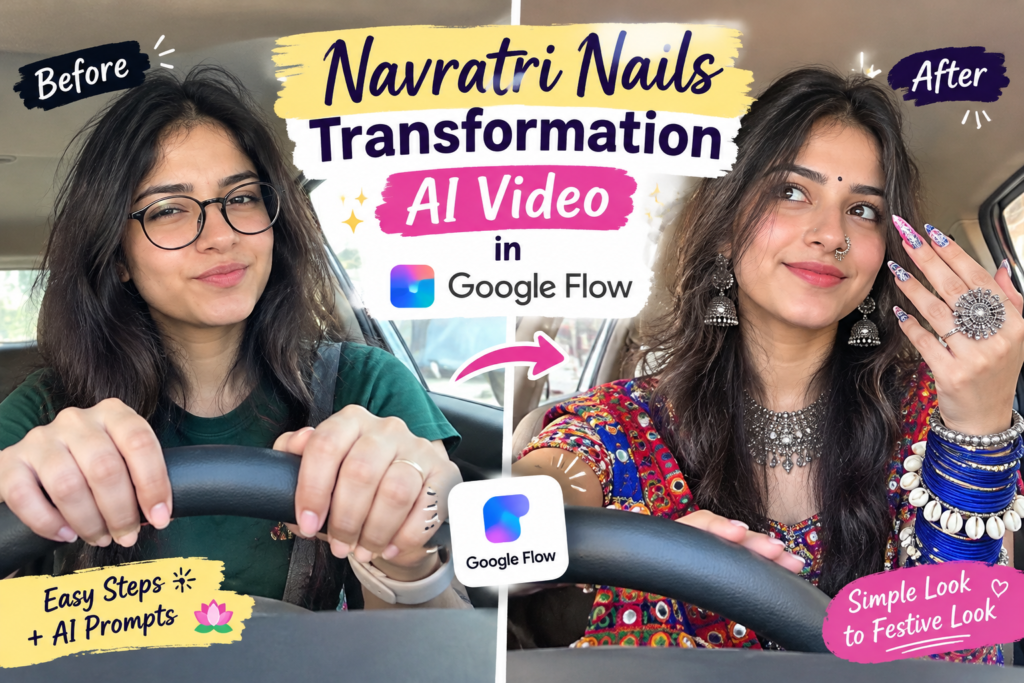
Have you seen the trending Instagram Reel where a girl changes her simple look into a beautiful Navratri outfit with just one hand movement? In the video, she starts with glasses, a green T-shirt, and natural nails. After swiping her hand across the camera, she appears in a festive look with long decorated nails, silver jewellery, colourful bangles, and a traditional chaniya choli.
This type of transformation video is becoming popular on Instagram because it looks smooth, creative, and eye-catching.
The good news is that you can create a similar video using Google Flow and a suitable AI prompt. You will need two matching reference images, a video prompt, and a little editing to get a good result.
In this guide, you will learn how to prepare your photos, use Google Flow, generate the transformation video, and add the final touches before sharing it on Instagram.
Navratri Nails Transformation Prompt
Navratri Nails Transformation Reference Video
What Is the Navratri Nails Transformation Trend?
The Navratri Nails Transformation is a short vertical video that shows a person changing from a simple everyday appearance into a festive Navratri style.
The video usually lasts around 10 to 11 seconds and follows a simple sequence.
- Starting look: A girl sits inside a car wearing glasses and a plain green T-shirt. Her nails are short and natural.
- On-screen text: A message such as “Navratri Nails Loading in…” appears on the screen.
- Hand movement: She moves her hand across the camera to create a transition.
- Final look: After the transition, she appears in a colourful Navratri outfit with long decorated nails, silver rings, and traditional bangles.
- Same background: The car interior, camera position, and lighting remain almost unchanged.
The main attraction is the quick change in appearance. The hand movement hides the transition and makes the final result look more natural.
Navratri Nails Transformation AI Video Prompt
To recreate this trend, you can use a reference video to guide the movements and timing. If you do not have a reference video, the following prompts can help you create a similar effect.
Prompt 1: Recreate the Reference Video
Copy the prompt below and adjust it to match your reference images.
AI Video Prompt:
Use the supplied reference video as the main guide for the entire transformation. Follow its original actions, hand movements, facial expressions, camera motion, framing, timing, and transition style as closely as possible.
Begin with the first reference image as the opening appearance. At the same moment as in the reference video, transition into the second reference image using the same hand-swipe effect.
In the final appearance, the subject must not wear glasses.
Preserve the person’s facial identity, face shape, skin tone, and natural body proportions using the uploaded reference photo. Avoid unnecessary changes to the face or appearance.
Do not add dialogue, speaking, or lip-sync. Focus on reproducing the physical actions shown in the reference video.
Use soft, bright natural lighting, realistic skin details, smooth movement, and a natural smartphone-camera appearance. Create the video in a vertical 9:16 format with realistic cinematic quality.
Prompt 2: Detailed Navratri Nails Transformation
If the first prompt does not produce the desired result, try this more detailed version.
AI Video Prompt:
Create an ultra-realistic 11-second vertical video in 9:16 format with a resolution of 1080 × 1920. The video should look like a selfie recorded on a phone placed near the dashboard of a parked car.
The camera should face upward from a low dashboard position, with the steering wheel in the upper-middle part of the frame and the dashboard visible along the bottom. Use soft daylight coming through the windshield and side windows. Show a slightly blurred building outside and a light beige car interior.
Keep the overall appearance similar to an ordinary smartphone recording. Avoid heavy cinematic filters or artificial-looking lighting.
IMPORTANT REFERENCE PHOTO INSTRUCTIONS
Use the uploaded Navratri reference photo as the main guide for the final appearance.
Keep the subject’s facial features, face shape, eyes, eyebrows, nose, nose ring, lips, skin tone, and natural skin texture consistent with the reference.
Match the hairstyle, hair length, hair colour, hair parting, bindi, makeup, and body proportions as closely as possible.
Pay special attention to the hands and accessories. Reproduce the nail length, nail shape, colours, patterns, stones, and decorations. Keep the rings, bangles, earrings, necklace, blouse, dupatta, and chaniya choli consistent with the reference photo.
Preserve the outfit’s colours, embroidery, fabric details, and traditional styling. Do not add unnecessary jewellery or remove existing accessories.
The subject’s face and festive appearance should remain consistent throughout the final part of the video.
Scene 1: Simple Look (0–7 Seconds)
The same girl sits in the driver’s seat of the car. She has natural, slightly messy open hair and wears black round glasses, a plain dark green T-shirt, a beige smartwatch on her left wrist, and a simple ring.
Her nails are short, natural, and light nude in colour. Her appearance is simple, with no festive jewellery or heavy makeup.
0–2 seconds: She places both hands on the upper part of the steering wheel, close enough to the camera to show her natural nails. She looks into the camera and makes a slight squint while behaving casually.
2–5 seconds: She lifts her hands and moves her fingers playfully in front of her chest. Her expressions should look relaxed, slightly bored, and amusing.
5–7 seconds: She touches her lips with her index finger as if thinking about something. Then she looks excited, opens her mouth slightly in surprise, and begins moving one hand toward the camera.
Text overlay: Display “NAVRATRI NAILS” near the bottom centre of the screen in bold white lettering. Add a small sparkle symbol and a lotus emoji. Below it, show “Loading in…” in elegant yellow-gold cursive lettering with small sparkles.
Keep the text in the same position throughout the first scene.
Transition: The Magical Hand Swipe (7–8 Seconds)
The girl quickly moves her hand across the camera lens. Her hand should completely cover the frame for a brief moment, creating a natural motion-blur effect.
During this movement, the on-screen text disappears.
Keep the car interior, camera angle, lighting, and background unchanged. Only the girl’s appearance should transform.
Her glasses disappear, the green T-shirt changes into the festive Navratri outfit, and her hairstyle, nails, and jewellery change to match the final reference photo.
Make the transformation smooth and continuous. Avoid flickering, distorted facial features, sudden background changes, or visible morphing effects.
Scene 2: Final Navratri Look (8–11 Seconds)
The girl now appears in the complete Navratri look shown in the reference photo. She no longer wears glasses or the smartwatch.
She holds the steering wheel with one hand and raises the other toward the camera to display her long decorated nails, large silver oxidised rings, and stacked bangles with shell-bead details.
She looks confidently into the camera, then glances slightly upward and to one side with a gentle smile.
Her hand movements should be slow, graceful, and natural. Include a slight head tilt and subtle bangle movement.
Keep her face, outfit, nail design, and jewellery consistent with the reference image.
Video Quality and Audio
Use realistic skin texture, natural phone-camera lighting, and smooth motion at 30 frames per second.
Keep the background stable throughout the video. Each hand should have five fingers, with natural proportions and correctly formed nails.
Avoid distorted hands, extra fingers, unwanted objects, and watermarks. Do not add subtitles other than the specified text in the first scene.
For audio, use a soft Navratri or garba-style instrumental beat that becomes more energetic during the hand-swipe transition. Add a light bangle-jingle sound and subtle car ambience.
The first scene may include a natural, playful voice if appropriate, but the video should not contain unnecessary dialogue or lip-sync.
Why Use Google Flow for This AI Video?
The biggest challenge with transformation videos is keeping the same face, background, and camera angle while changing the person’s appearance.
If the face, nail design, or jewellery changes unexpectedly, the final video may look artificial.
Google Flow provides tools that can help you create this type of video.
Frames to Video: Use a starting image and an ending image to guide the transformation between two appearances.
Ingredients to Video: Use reference images to help maintain the appearance of a character or other important visual elements.
SceneBuilder: Arrange and combine video clips to create a more complete sequence.
Audio generation: Depending on the available model and features, you may be able to generate audio alongside your video.
Keep in mind that Google Flow’s features depend on your account, subscription, and the models available to you. Check the options shown in your account before starting.
What Do You Need to Create This Video?
Prepare the following items before you begin:
- Google Flow: Access to Flow and the video-generation features available under your Google AI plan.
- Before reference photo: An image showing the simple look with glasses, a plain T-shirt, and natural nails.
- After reference photo: An image showing the complete Navratri outfit, decorated nails, and traditional jewellery.
- AI image generator: ChatGPT or Google Gemini can help you prepare the reference images.
- Video editor: CapCut or VN can be used to add text, music, and final adjustments.
Preparing the images carefully can make the video-generation process much easier.
Step 1: Prepare Your Before and After Photos
The quality of your reference images has a major effect on the final video.
Both photos should use a similar camera angle, car background, and lighting. This helps the AI create a smoother transition between the two appearances.
Start by uploading your original photo to an AI image generator. Create the final Navratri look first, making sure that the face and other important features match your reference.
Next, prepare the simple starting look using the same original photo as your identity reference.
Check the two images before moving forward. The background, framing, and position of the subject should be as similar as possible.
Before-look image prompt: Add your own working prompt for the simple appearance here.
After-look image prompt: Add your own working prompt for the complete Navratri appearance here.
For the best results, use clear images with good lighting and avoid making unnecessary changes to the person’s facial features.
Step 2: Open Google Flow and Create a Project
Once your images are ready, open Google Flow in your browser and sign in with your Google account.
Follow these steps:
- Create a new project.
- Open the video-generation options.
- Select Frames to Video if the feature is available.
- Set the aspect ratio to 9:16 for a vertical Instagram Reel.
- Check that your project settings are correct before continuing.
The exact interface and available options may vary depending on your account and the Flow model you use.
Step 3: Upload the Starting and Ending Images
Now upload your two reference images.
- Starting frame: Choose the photo showing the simple look.
- Ending frame: Choose the photo showing the final Navratri appearance.
These images guide the AI from the beginning to the end of the transformation.
Using both frames can help maintain the subject’s appearance and make the transition more consistent. However, the final result may still require a few attempts.
Before generating the video, confirm that the two images have similar framing and backgrounds.
Step 4: Add Your Video Prompt
After uploading both images, enter your video prompt into the prompt box.
Describe the complete sequence clearly, including the camera position, hand movements, transformation, and final appearance.
Your prompt should cover these important details:
- Camera angle: A low selfie view from the dashboard, looking toward the steering wheel.
- Opening scene: The girl shows her natural nails and moves her fingers playfully.
- Facial expressions: She looks at the camera, touches her lips, and reacts with excitement.
- Transition: Her hand quickly covers the lens, creating a motion-blur effect.
- Final appearance: She reveals the Navratri outfit, decorated nails, rings, and bangles.
- Background: The car interior and camera position remain consistent.
- Audio: Use suitable festive music and subtle bangle sounds if the available tools support them.
Google Flow video prompt: Paste your chosen working video prompt here.
Read through the prompt once before generating the clip. Clear instructions can help reduce unwanted changes.
Step 5: Generate the Video and Select the Best Result
Your first generation may not be perfect. The AI might change the nail design, distort a hand, or produce a transition that does not match your reference.
To improve the result:
- Generate more than one version if your available credits allow it.
- Watch each clip from beginning to end.
- Check the face, hands, nails, rings, and bangles carefully.
- Look for changes in the car interior or camera angle.
- Choose the version with the smoothest transition and most consistent appearance.
If the hands or jewellery look incorrect, adjust the prompt or reference images and try again.
Avoid repeatedly generating videos without checking what went wrong. Small, targeted changes can save time and generation credits.
Step 6: Edit the Video in CapCut or VN
Once you have a suitable video, download it and open it in CapCut or VN.
You can now make the final adjustments.
Add the text: Place “NAVRATRI NAILS” and “Loading in…” on the first scene. Adding the text manually gives you more control over the spelling, font, size, and position.
Choose background music: Select a suitable festive or garba-style track that matches the mood of the video.
Sync the transition: Align the music’s beat with the moment when the girl swipes her hand across the camera.
Check the timing: Make sure the opening scene is not too long and the final look has enough time to be seen clearly.
Export the video: Use a vertical 1080 × 1920 resolution for a 9:16 Reel.
Before posting, watch the exported video to confirm that the transition, text, and music are working as intended.
Alternative Method: Combine Two Separate Video Clips
If Google Flow struggles to produce the complete transformation in one generation, you can create two separate clips instead.
This approach gives you more control over each part of the video.
First clip: Generate a video of the girl in her simple appearance. Keep it around five to six seconds long.
Second clip: Create another video showing the complete Navratri look. Aim for around four to five seconds.
Join the clips: Import both videos into CapCut or VN.
Add the transition: Place a hand-swipe transition between the clips. You can use a suitable transition effect or create the effect with carefully timed footage of the hand covering the lens.
Match the details: Check that the face, camera angle, background, and lighting look consistent across both clips.
This method can make editing easier because you can work on the opening and final scenes separately.
AI Tools for Creating a Navratri Transformation Video
Different tools can help with different parts of the process.
| AI Tool | Main Purpose | How You Can Use It |
|---|---|---|
| ChatGPT | AI image creation and prompt assistance | Prepare the before and after reference images, where supported |
| Google Gemini | Image creation and prompt assistance | Develop reference images and improve prompt instructions |
| Google Flow | AI video generation | Create the transformation video |
| CapCut | Video editing | Add text, music, and transitions |
| VN | Video editing | Arrange clips and make final adjustments |
| Midjourney | Artistic image generation | Explore stylised Navratri outfit concepts |
| Leonardo AI | AI image generation | Create alternative reference images |
You do not need to use every tool listed above. Start with the tools you already have access to and choose the ones that suit your workflow.
Tips for Better Navratri Nails Transformation Videos
Follow these suggestions to improve the quality of your result.
1. Choose a clear reference photo
Use a well-lit image where the face and important details are easy to see. Blurry photographs can make it harder to maintain a consistent appearance.
2. Keep the camera angle consistent
Try to use the same framing and background in both reference images. Large differences can make the transition look unnatural.
3. Describe the nail design clearly
Mention the nail length, shape, colours, stones, and decorative patterns in your prompt. This gives the AI more information about the final look.
4. Include instructions for natural hands
Ask for five fingers on each hand, realistic finger proportions, and correctly formed nails. These instructions may help, although they cannot guarantee a perfect result.
5. Check the jewellery
Look closely at the rings, bangles, and other accessories. If their designs change between frames, refine the prompt and generate another version.
6. Test before using your credits
Generate a short test when possible. Check the result before spending additional credits on a higher-quality version.
7. Add text in your editor
AI-generated text may contain spelling mistakes or uneven lettering. Adding the text manually in CapCut or VN gives you better control.
8. Make the transition match the music
A hand swipe timed with a musical beat can make the transformation more satisfying to watch.
9. Keep the video focused
Avoid adding unnecessary effects or changing the background during the transformation. The main attraction should be the change from the simple look to the festive appearance.
10. Choose a suitable posting time
If you are creating content for Navratri, consider publishing it when your audience is interested in festival-related videos. There is no guaranteed posting time for maximum reach, so use your Instagram insights to understand when your followers are active.
Frequently Asked Questions (FAQs)
1. Should I use Frames to Video or Ingredients to Video for this transformation?
Frames to Video is a useful option when you want to guide a transformation using a starting image and an ending image.
Ingredients to Video can be helpful when you want to use reference images to guide the appearance of a character or other visual elements.
Choose the feature that best matches your project and the options available in your Google Flow account.
2. Why do the nails and bangles look different from my reference photo?
AI-generated videos may not reproduce every small detail correctly.
Describe the nail shape, colours, decorations, and jewellery more clearly in your prompt. Also, use a high-quality final reference image where these details are easy to see.
If the result is still inaccurate, try adjusting the prompt or generating another version.
3. Can Google Flow add the “Navratri Nails Loading in…” text automatically?
The result depends on the model and its text-rendering ability. Generated text may contain spelling errors or inconsistent lettering.
For a cleaner result, add “NAVRATRI NAILS” and “Loading in…” manually in CapCut or VN.
4. What should I write to get the car dashboard selfie angle?
Describe the camera as a phone placed near the dashboard, looking upward toward the steering wheel. Mention the low selfie angle, natural daylight, beige car interior, and slightly blurred outdoor background.
Using similar framing in both reference images can also help.
5. Can I use this transformation idea for other festivals?
Yes. You can adapt the same basic concept to other celebrations.
For example, replace the Navratri outfit with a traditional Diwali look, a Karwa Chauth outfit, or a festive Raksha Bandhan style.
Update the reference images, clothing, accessories, and nail design while keeping the same hand-swipe transition.
6. Can I make this video for free?
Your options depend on the tools and features available to your accounts.
Google Flow’s video-generation access and usage limits depend on your plan and the currently supported features. Check the available options before starting.
If you cannot access Flow, you can still prepare reference images with an available image-generation tool and edit separate clips using CapCut or VN. However, free templates and editing tools may not provide the same AI-generated transformation.
Final Thoughts
The Navratri Nails Transformation is a creative way to make festival-themed Instagram Reels using AI.
You can create a similar video by preparing two matching reference images, writing a clear video prompt, and using Google Flow to generate the transition. After that, use CapCut or VN to add text, music, and any final adjustments.
The most important things to focus on are facial consistency, detailed nails and jewellery, matching backgrounds, and a smooth hand-swipe transition.
Your first attempt may need some improvements, so review the result carefully before generating another version.
With a little practice, you can adapt this idea to different outfits, nail designs, and festivals to create your own transformation videos.

Pratiksha Thakare is a Vedic astrology writer and spiritual researcher with deep study in Jyotish, numerology, and Hindu philosophy. She writes to make ancient wisdom simple and accessible for modern Indian readers.