
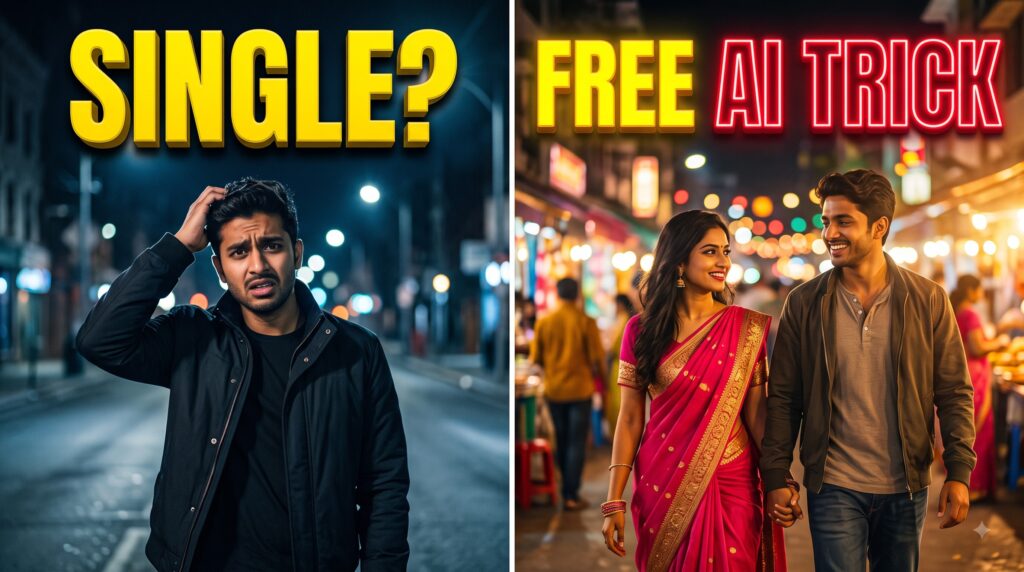
Short-form video feeds are currently dominated by seamless, cinematic “AI companion” or “AI girlfriend” transition edits. These visually striking clips—where a person walking alone suddenly appears hand-in-hand with an AI-generated partner—look complex, but they can be easily replicated right from your smartphone.
This step-by-step guide breaks down how to create a viral AI companion video using ChatGPT, Google Flow AI, and CapCut.
Step 1: Shoot and Prepare Your Base Video
The illusion of an AI partner relies on a realistic foundation clip.
- Record the Footage: Film a short vertical video (9:16) of yourself walking alone outdoors or indoors at night, leaving a clear empty space next to you in the frame.
- Import into CapCut: Open CapCut, start a new project, and import your recorded clip.
- Capture a Reference Frame: Go to the ending portion of your clip where the transition will happen, take a clear screenshot of the frame, and crop it to focus on your stance.
Generate Image via ChatGPT
IMAGE TO VIDEO PROMPT
(Image to video) Image-to-video, 4 seconds, realistic night scene shot like a selfie-style handheld POV. Keep the exact framing of the reference image: a medium close-up cropped below the faces, with the man in a green-and-cream checked shirt on the left and the woman in a light pink embroidered saree with a cream blouse on the right. Her hand rests on his forearm. The man holds the camera with his other hand, which is never visible in the frame. Only the one hand at the bottom of the frame appears in the whole video. Background: The background stays pitch dark, exactly like the reference image, for the entire video. It is a plain dark black surface with no new objects, lights, or additional elements. Keep the video realistic and natural, maintaining the exact original framing, clothing, body positions, and hand placement throughout the entire 4-second clip.
Step 2: Generate the AI Companion Image via ChatGPT
To seamlessly blend an AI character into your shot, you need an image that matches your lighting, clothing style, and pose.
- Open ChatGPT and tap the attachment/photo icon to upload the screenshot you just saved.
- Use a precise prompt to add the character without altering the original background or your identity. For example:
“Edit the image without changing the original identity, clothing, body position, hand position, skin tone, and overall composition. Add a girl standing beside the boy, holding his hand, dressed in a light pink saree with a white blouse. Keep the pose natural.” - Once ChatGPT generates the modified image matching your description, download it directly to your phone.
Step 3: Animate the Scene Using Google Flow AI
Next, bring the static image to life using Google’s cloud-based AI filmmaking platform, Google Flow (powered by the Veo video model family).
- Go to Google Flow (
flow.google.comor via the mobile interface). - Set your generation mode to Image-to-Video (or use the start-frame setting) and upload your newly edited image.
- Enter a motion prompt to direct how the characters should move. A prompt like this works well:
“Image-to-video, 4-second, realistic night scene shot like a selfie-style handheld POV. Keep the exact framing of the reference image: a medium close-up of a man and woman walking together naturally while holding hands.” - Generate the video clip, preview the result, and download it in high definition (such as 720p or 1080p).
Step 4: Final Polish and Transition Effects in CapCut
Bring everything together to ensure a smooth, attention-grabbing loop.
- Return to your project in CapCut and append the newly downloaded AI-generated video clip right after your original footage.
- Tap on the transition box or cut point between the two clips.
- Choose a dynamic, snappy transition effect—such as the Flashback or Flash/Glitch transition—to mask the cut and create a cinematic pop.
- Export your final video in high resolution, and you are ready to post it to Instagram Reels, YouTube Shorts, or TikTok to capture algorithmic growth!
Pro-Tips for Maximum Virality
- Nail the Hook: Ensure the first 2 seconds of your video feature an intriguing text overlay (like “Single?” or a relatable relationship hook) to stop viewers from scrolling.
- Match the Lighting: When prompting your AI tools, always specify the lighting conditions of your original footage (e.g., night scene, streetlights, golden hour) so the AI companion doesn’t look out of place.

Pratiksha Thakare is a Vedic astrology writer and spiritual researcher with deep study in Jyotish, numerology, and Hindu philosophy. She writes to make ancient wisdom simple and accessible for modern Indian readers.