
The Open Gangnam Style Trend is a fun AI video trend that lets you recreate a popular group dance using your own face and your friends’ photos. In this trend, three people dance together in a city square at night, performing energetic Gangnam Style-inspired moves with happy expressions and selfie-style camera angles.
You do not need to record the dance yourself. With Google Flow AI, you can use reference videos and photos to create your own version of this group dance trend.
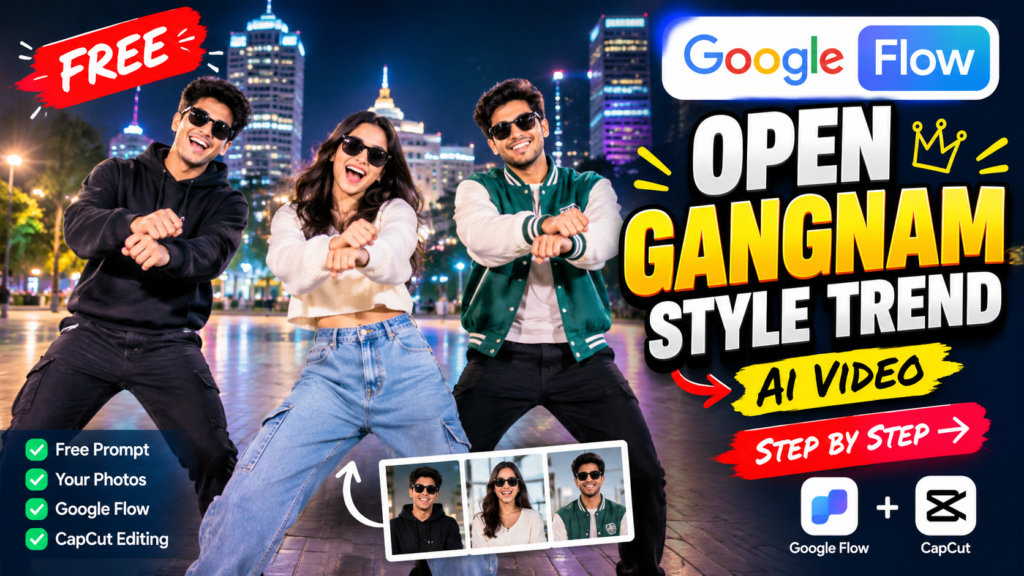
In this article, you will learn how to make the Open Gangnam Style AI video using Google Flow, get the free AI video prompt, prepare your photos, and combine the generated clips with music using CapCut or VN.
Let’s follow the complete process step by step.
What Is the Open Gangnam Style Trend?
The Open Gangnam Style Trend is a group dance video style inspired by the famous Gangnam Style dance. It features three people dancing together with energetic movements, funny expressions, and a lively nighttime background.
The interesting part is that you can replace the original dancers with yourself and two friends using AI video generation.
Instead of recording a new dance video, you provide Google Flow with reference footage and three photos. The tool then attempts to recreate the scene with the people from your photos.
You can use this method to create entertaining Instagram Reels, YouTube Shorts, or other short-form videos.
Open Gangnam Style Reference Video
Open Gangnam Style Video Prompt
Watch the Open Gangnam Style Trend Video
Before creating your own version, watch the reference video to understand the dance movements, camera angles, and scene.
Reference video: Watch the Open Gangnam Style Trend
Important: Use only the muted Part 1 and Part 2 reference clips when generating your video in Google Flow. According to this workflow, the original video contains audio that may cause a speech-editing error. Keep the original audio file for the final editing stage instead.
Why Is the Open Gangnam Style AI Video Trend Popular?
Dance videos are easy to enjoy and share, especially when they include familiar movements and funny moments with friends.
Here are a few reasons why this type of AI video can attract attention:
- Group dance concept: Three people dancing together makes the video entertaining.
- Personalized characters: You can use your own photos and your friends’ photos.
- Recognizable dance style: The Gangnam Style-inspired movements make the video easy to understand.
- AI video creation: You can experiment with a dance scene without filming it yourself.
- Social media friendly: The finished video can be edited for Instagram Reels and YouTube Shorts.
Remember that a video’s reach depends on its quality, audience interest, timing, and engagement. Following a trend does not guarantee viral views.
What Do You Need to Create the Open Gangnam Style AI Video?
Before starting, keep these four things ready.
1. Two muted reference clips
Prepare Part 1 and Part 2 of the original reference video. Each clip should be around 10 seconds long and have no audio.
2. Three clear photos
You need three photos, one for each dancer. Choose images where the faces are clearly visible. Use photos you have permission to use.
3. Google Flow AI
You will use Google Flow to generate the two dance clips. Available features, generation limits, and free credits may vary depending on your account.
4. CapCut or VN Video Editor
After generating both clips, use a video editor to join them and add the appropriate music.
Step 1: Download the Muted Reference Videos
The reference video used in this workflow is approximately 20 seconds long. To create the full version in two separate generations, divide it into two clips.
Prepare the following files:
- Part 1: The first 10 seconds without audio.
- Part 2: The remaining 10 seconds without audio.
- Original video with sound: Keep this file for reference or authorized audio use during editing.
If the provided download folder contains these files, download them to your device before opening Google Flow.
Do not upload the original audio version if it causes a speech-editing error. The muted clips are intended for the video-generation process.
Step 2: Open Google Flow and Upload Your Photos
Now it is time to prepare your first AI video.
- Open Google Flow in your browser.
- Create a new project.
- Select the available workflow that supports reference videos and image ingredients.
- Choose a 16:9 aspect ratio to match the reference footage.
- Upload the muted Part 1 video.
- Add your three photos in the correct order.
Keep the photos arranged like this:
- Image 1: Person replacing the dancer on the left.
- Image 2: Person replacing the dancer in the middle.
- Image 3: Person replacing the dancer on the right.
Use the same image order throughout the process. This helps you maintain consistency between the two generated clips.
The available interface and feature names may differ depending on your Google Flow version.
Step 3: Copy the Free Open Gangnam Style AI Video Prompt
After uploading the reference clip and three photos, use the prompt below to explain what you want Google Flow to create.
The prompt focuses on keeping the original dance, scene, and camera movement while replacing the dancers with the people in your photos.
Free Google Flow AI Video Prompt
Copy the complete prompt below and paste it into Google Flow.
Prompt:
Replace the three dancers in the reference video with the three people shown in the uploaded reference images.
Use Image 1 for the dancer on the left, Image 2 for the dancer in the middle, and Image 3 for the dancer on the right. Keep each person’s identity consistent with their corresponding photo, including recognizable facial features, skin tone, hairstyle, and overall appearance.
Use the clothing shown in each reference image as the outfit for that person’s character. Preserve the visible colors, clothing style, accessories, and other important outfit details as closely as possible.
Recreate the dance movements, body positions, gestures, facial expressions, timing, camera angles, camera movements, lighting, background, and overall scene composition of the reference video. Keep all three dancers in their original positions and make their movements look natural and synchronized with the reference footage.
Maintain consistent character identities and clothing throughout the entire video. Do not mix up the three people or transfer facial features between characters.
Keep the original nighttime city-square setting and preserve the visual style of the reference video. Do not introduce additional people, unexpected scene changes, or unrelated objects.
Remove visible text, subtitles, logos, and watermarks where possible. Do not add new text, graphics, or captions.
Generate a clean, realistic-looking video that closely follows the reference footage while using the three uploaded people as the dancers.
Recommended settings: Use the same aspect ratio as the reference clip and select the available duration that best matches the uploaded segment.
Note: AI tools may not reproduce every face, movement, or outfit perfectly. If the first result is not satisfactory, adjust the prompt or try another generation.
Step 4: Generate the First Dance Video
Once your prompt and reference files are ready, start generating Part 1.
Follow these steps:
- Check that the muted Part 1 clip is selected.
- Confirm that all three photos are uploaded.
- Check the left, middle, and right character assignments.
- Paste the complete AI video prompt.
- Review your settings and click Generate.
- Wait for the video to finish processing.
- Preview the result and save the generated clip.
Watch the video carefully before moving to the next step.
Check whether the faces look similar to your reference photos, the dancers remain in their correct positions, and the dance movements follow the reference footage.
If something looks wrong, try adjusting your prompt and generating another version.
Step 5: Create Part 2 Using the Same Prompt
After completing the first clip, repeat the process for the second half of the dance.
Follow these instructions:
- Start a new generation in Google Flow.
- Upload the muted Part 2 reference video.
- Upload the same three photos.
- Keep the photos in exactly the same order.
- Paste the same prompt.
- Use settings that match your first generation as closely as possible.
- Generate and save the second clip.
Using the same photos and character assignments can help maintain consistency across both parts.
However, AI-generated clips may still have small differences in faces, clothing, or movement. Review both clips before combining them.
Step 6: Join Both Clips and Add Music in CapCut or VN
You now have two generated videos. The next step is to combine them into one complete dance video.
You can use CapCut, VN, or another video editor.
Follow these editing steps:
- Open your video editor and create a new project.
- Import the generated Part 1 clip.
- Add Part 2 directly after Part 1.
- Check the transition between the clips.
- Add an audio track if you have permission to use it.
- Align the music with the dance movements.
- Mute the original audio from both generated clips if necessary.
- Preview the complete video from beginning to end.
- Export the final video using the resolution and frame rate suitable for your platform.
If you use the original song, make sure you have the necessary rights or use music available through the social platform’s licensed music library. Uploading a song without permission may lead to copyright claims or restrictions.
Your Open Gangnam Style AI dance video is now ready to share.
Tips to Get Better Results
Follow these simple tips to improve your final video.
Use clear photos: Choose sharp, well-lit images where each person’s face is easy to recognize.
Keep the character order unchanged: Always use the same photo for the same dancer in both generations.
Choose suitable outfits: Upload photos showing the clothing you want the AI to reproduce.
Check the dance movements: Review the generated video to see whether the timing and body movements match the reference.
Generate another version if needed: AI results can vary. Try a revised prompt if the first result does not look right.
Check the final edit: Watch the joined video for sudden jumps, mismatched movements, audio problems, or changes in character appearance.
Use the right format: Keep the 16:9 ratio if you want to match the original reference video. If you want to post a vertical Reel, you can create a separate 9:16 edit, but you may need to crop or reframe the footage.
Respect other people’s privacy: Get permission before using your friends’ photos, and avoid presenting an AI-generated video as genuine footage of something that actually happened.
Frequently Asked Questions (FAQs)
1. What is the Open Gangnam Style Trend?
The Open Gangnam Style Trend is a group dance video concept inspired by Gangnam Style. With AI video tools, you can attempt to recreate the dance using your own photos and the photos of two friends.
2. How do I create the Open Gangnam Style AI video?
Prepare two muted reference clips and three clear photos. Upload the first clip and photos to Google Flow, paste the prompt, and generate the video. Repeat the process for the second clip, then join both videos in CapCut or VN.
3. Is the Open Gangnam Style Google Flow prompt free?
Yes, the prompt provided in this article is free to copy and use. However, Google Flow’s access, generation credits, and available features may depend on your account and current plan.
4. Why should I use a muted reference video?
A muted reference clip can help avoid audio-related processing issues when the video contains speech or singing. If Google Flow displays an error about editing speech, try a version without audio.
5. Can I create this video with only two people?
The prompt in this article is designed for three dancers. You can modify the character assignments and prompt for two people, but the result may differ from the original group dance.
6. Why is the original video divided into two parts?
The reference video is approximately 20 seconds long, while this workflow uses two clips of around 10 seconds each. Separate generations make it easier to create the video in stages and combine the results afterward.
7. Can I upload the finished video to Instagram Reels?
Yes, you can prepare the video for Instagram Reels. Before posting, check that you have permission to use the photos and any music included in your final edit.
Conclusion
The Open Gangnam Style Trend is a creative way to experiment with AI-generated group dance videos. By using Google Flow, three reference photos, two muted video clips, and the free prompt shared above, you can create your own version without recording the entire dance yourself.
Start by preparing your photos and reference clips, generate both parts separately, and join them using CapCut or VN. Review the finished video carefully to ensure that the characters, movements, and audio look consistent.
Try the prompt with your friends, make your own edit, and share the result if you enjoy it.

Pratiksha Thakare is a Vedic astrology writer and spiritual researcher with deep study in Jyotish, numerology, and Hindu philosophy. She writes to make ancient wisdom simple and accessible for modern Indian readers.