
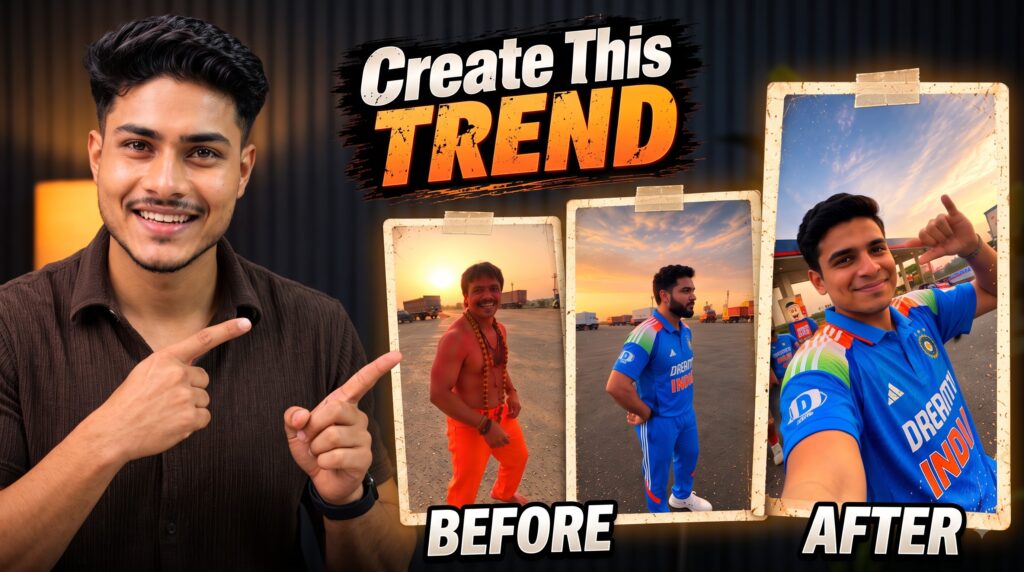
If you scroll Instagram Reels these days, you have probably seen this clip. A man dances at a highway petrol pump at sunset. His friend takes selfies nearby. Then a third friend steps out of a parked car and walks toward the camera.
The clip looks like a real video shot on a phone, but it is made with AI. People are now recreating it with their own faces and their friends’ faces. You don’t need editing skills, an expensive camera, or a filming crew. You only need one reference video, three photos, and a text prompt.
This guide explains how the trend works, what the prompt does, and how to make your own version step by step.
Viral Dancing Trending AI Video Prompt
What Is This Trend About?
The original video has three characters in one short scene:
- The Dancer performs a dance at the start of the video.
- The Camera Operator holds the phone the whole time. At certain points, the camera flips around into selfie mode and shows his face.
- The Passenger steps out of a parked car and walks toward the camera. He appears again in the background of the final selfie.
The AI tool takes the movements from the original video and applies them to new faces that you provide. The result looks like you and your friends are the ones standing at that petrol pump.
How Does It Work?
The trick is to separate two things:
- Motion: how people move, how the camera moves, and when each shot changes. This comes from the reference video.
- Identity: what the people look like (faces, clothes, body shape). This comes from your three photos.
The AI is told to copy only the motion from the video and take the appearance from your photos. This is why the final video looks like the original but stars different people.
What You Need Before You Start
- A Google account, to sign in to Google Flow
- The original reference video, saved on your phone
- Three clear photos, one for each character
- The prompt (explained below)
Understanding the Prompt
The prompt has two main parts. Knowing what each part does will help you fix problems later.
Part 1: The Motion Lock
This section tells the AI to recreate the reference video shot for shot as a realistic vertical (9:16) video, the format Reels use. It asks the AI to copy:
- The dance steps, arm movements, and hand gestures
- The walking path and the timing of each action
- The handheld camera shake, the pans, and the fast whip-pans
- The 180° selfie rotations
- The framing and the exact points where shots change
Most importantly, it tells the AI not to copy any face, clothing, or texture from the original video. Only the motion, camera, and timing are copied.
Part 2: Character Replacement
This section assigns each photo to a role:
- Reference image 1 is the Dancer. He appears only in the opening dance. He never holds the phone and never shows up in a selfie.
- Reference image 2 is the Camera Operator. He holds the phone for the whole video. Whenever the camera flips into selfie view, both the first turn and the final selfie, the face shown must be his, with the same expressions as the original.
- Reference image 3 is the Passenger. He steps out of the parked car, walks toward the camera, and stands in the background of the final selfie. He never holds the phone.
These rules matter because AI tools often mix up faces. Spelling out who appears where, and who never appears in certain shots, reduces those mistakes.
Step-by-Step: Making Your Video in Google Flow
Step 1: Open Google Flow.
Go to Google Flow and sign in with your Google account.
Step 2: Upload the reference video.
Upload the original clip you downloaded. This is the source of all the motion.
Step 3: Upload your three photos.
Keep the order correct:
- Photo 1 is the dancer.
- Photo 2 is the person holding the phone (the selfie face).
- Photo 3 is the friend who steps out of the car.
Step 4: Paste the prompt.
Copy the full prompt and paste it into the text box.
Step 5: Tag your photos.
Inside the prompt, type @ and choose the right photo. Tag photo 1 next to “Reference image 1,” photo 2 next to “Reference image 2,” and photo 3 next to “Reference image 3.” This connects each photo to its role.
Step 6: Generate and download.
Click Generate and wait a few minutes. When the video is ready, download it and post it as a Reel.
Tips for Better Results
The quality of your video depends heavily on the quality of your photos. Keep these points in mind:
- Use clear, front-facing photos with good lighting. The AI needs to see the face properly.
- Avoid sunglasses, caps, and group photos. Anything covering the face confuses the AI, and each photo should show only one person.
- Choose half-body photos when possible. The AI can then copy clothes and body shape more accurately.
- Check the photo order. If faces come out mixed up, look at your @ tags, fix them, and generate again.
Troubleshooting
| Problem | Likely Cause | Fix |
|---|---|---|
| Faces are swapped between characters | Wrong photo order or wrong @ tags | Re-check tags and regenerate |
| A face looks blurry or distorted | Low-quality or dark photo | Use a sharper, well-lit photo |
| The dancer appears in the selfie | The AI ignored the role rule | Regenerate; the rules are in the prompt |
| Clothes look wrong | Face-only photos | Use half-body photos |
AI generation is not perfect, so you may need two or three attempts.
A Few Important Things to Keep in Mind
Get permission. Since you are using your friends’ faces, ask them before you make and post a video of them. Never use someone’s photos without their consent.
Results can vary. The original article says the AI copies every movement exactly, but AI video tools don’t always follow instructions perfectly. Features and access in Google Flow may also change or differ by region or plan, so check what your account supports.
Label it as AI. Many platforms, including Instagram, encourage or require you to mark AI-generated content. It is good practice to do so.
Conclusion
This viral trend shows how simple AI video has become. With one reference video, three photos, and one prompt, anyone can make a Reel that looks like it was shot on a real highway at sunset. The recipe is:
- Download the reference video.
- Upload it to Google Flow along with three clear photos.
- Paste the prompt and tag each photo.
- Generate, download, and post.
Good photos and correct tagging are the two biggest factors in getting a result that looks right.

Pratiksha Thakare is a Vedic astrology writer and spiritual researcher with deep study in Jyotish, numerology, and Hindu philosophy. She writes to make ancient wisdom simple and accessible for modern Indian readers.