
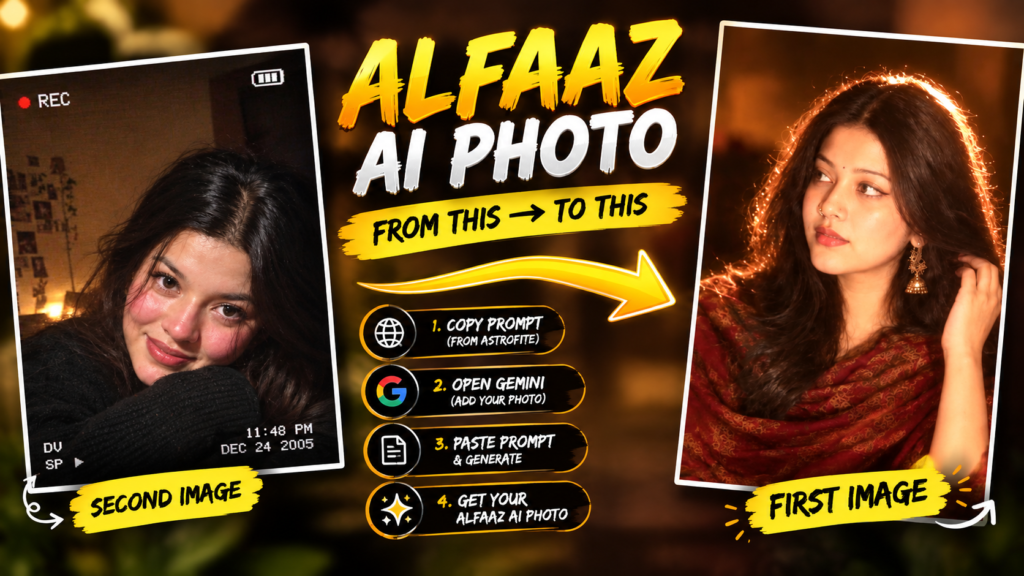
AI-generated photos are becoming a huge trend on Instagram, Facebook, and other social media platforms. Every few days, a new AI photo style starts appearing in Reels and posts, and people want to know how those images are created.
One such trend is the Alfaaz AI Photo, where users can create a stylish, cinematic-looking image by combining their own photo with a specially written AI prompt.
The good thing is that you do not need advanced photo-editing skills for this process. You mainly need an AI image prompt, your own photo, and Google Gemini.
In this guide, we will explain the complete process step by step, including how to get the prompt, how to use it in Gemini, how to choose the right image, and what to keep in mind before using third-party websites.
IMAGE PROMPT
What Is the Alfaaz AI Photo Trend?
The Alfaaz AI Photo trend refers to a popular style of AI-generated images created using a detailed text prompt.
Instead of manually editing everything in Photoshop or another editing application, an AI image generator can understand instructions about:
- Background
- Clothes
- Lighting
- Camera angle
- Facial appearance
- Pose
- Colors
- Environment
- Overall cinematic style
You simply provide your image as a reference and give the AI suitable instructions.
Think of an AI prompt like a recipe.
If you give a chef only the instruction “make food,” the result can be anything. But if you provide a detailed recipe, the chef knows exactly what you want.
AI image generation works in a similar way.
| Element | Purpose |
|---|---|
| Your photo | Provides the person/identity reference |
| AI prompt | Describes the desired scene and appearance |
| Gemini | Processes the image and instructions |
| Final result | Generates the requested AI photo |
Why Is the Alfaaz AI Photo Trending?
There are several reasons why this type of AI photo has become popular.
Easy to Create
Users don’t need professional editing knowledge. The AI does most of the visual work.
Personalized Results
Instead of generating a completely random character, you can use your own photograph as a reference.
Social Media Friendly
The final images can be suitable for Instagram posts, profile pictures, stories, thumbnails, and creative Reels.
Cinematic Appearance
A well-written prompt can describe things such as cinematic lighting, realistic skin texture, depth of field, professional photography, and dramatic backgrounds.
This can make an ordinary photograph look much more polished.
What Do You Need to Create an Alfaaz AI Photo?
Before starting, keep these things ready:
- A clear photograph of yourself
- Internet connection
- A Google account
- Access to Google Gemini
- The Alfaaz AI photo prompt
- A little patience for generating and improving the result
You don’t necessarily need expensive editing software.
| Requirement | Recommended |
|---|---|
| Smartphone/PC | Any modern device |
| Photo | Clear, high-quality image |
| AI tool | Google Gemini |
| Prompt | Alfaaz AI photo prompt |
| Editing software | Optional |
| Technical knowledge | Not required |
Step 1: Find the Alfaaz AI Photo Prompt
The first step is to get the prompt that describes the particular Alfaaz AI photo style.
According to the process being shared with this viral trend, users can visit the Astrofite website and look for the relevant Alfaaz AI photo prompt.
The important part here is the prompt itself.
A prompt may contain detailed instructions about the person’s appearance, background, clothing, lighting, camera style, composition, and other visual elements.
Copy the Prompt Carefully
Once you find the relevant prompt:
- Open the page containing the Alfaaz AI photo prompt.
- Read the instructions once.
- Locate the complete prompt.
- Copy the entire prompt.
- Avoid accidentally deleting important instructions.
If the prompt is long, make sure you copy everything from beginning to end.
A missing sentence can sometimes change the final output significantly.
Step 2: Open Google Gemini
After copying the prompt, the next step is to open Google Gemini.
You can use Gemini from a compatible browser or device and sign in with your Google account if required.
Once Gemini is open, look for the option that allows you to provide an image along with your instruction.
The exact interface can change over time, so the buttons or layout may look slightly different depending on the version you are using.
Step 3: Upload Your Photo
Now select the photograph you want to transform.
For the best result, choose a photo that is:
- Clear and sharp
- Well-lit
- Not heavily blurred
- Showing your face properly
- Not covered by sunglasses or other objects
- Not extremely cropped
- Free from excessive filters
A simple, clear portrait often works better than an extremely edited photograph.
Example
Imagine you have two photos.
Photo A: A clear front-facing picture with good lighting.
Photo B: A dark selfie with a heavy filter and half of the face hidden.
Photo A is generally a better starting point because the AI has more visual information to work with.
| Photo Quality | Expected Result |
|---|---|
| Clear face + good lighting | Usually better reference |
| Slightly blurry | May reduce accuracy |
| Heavy filters | Can affect appearance |
| Face partly covered | Less useful reference |
| Very dark image | Details may be difficult to interpret |
Step 4: Paste the Alfaaz AI Prompt
After uploading your photo, paste the complete prompt you copied earlier into Gemini.
This is the most important part of the process.
The uploaded image tells the AI what visual reference to use, while the prompt explains what you want the final image to look like.
For example, a prompt might describe:
- A particular outfit
- A cinematic environment
- Specific lighting
- A particular pose
- Background elements
- Camera composition
- Realistic photography
- Color grading
- Facial details
You don’t need to manually describe every element again if the original prompt already contains those instructions.
Step 5: Generate the AI Photo
After uploading your image and pasting the prompt, submit the request in Gemini.
Gemini will process the reference image and the instructions.
Depending on the prompt and the system’s capabilities, the result may take some time to appear.
Once the image is generated, carefully check it.
Look at:
- Face
- Eyes
- Hair
- Clothing
- Hands
- Background
- Lighting
- Overall composition
Sometimes the first result isn’t perfect.
That’s completely normal with AI image generation.
Step 6: Improve the Result if Needed
If the first image isn’t exactly what you expected, don’t immediately assume the prompt doesn’t work.
You can try again with a clearer photo or make a small adjustment to your instructions.
For example, you can ask the AI to improve:
Keep the person’s facial identity consistent with the uploaded reference image and make the overall result more realistic.
You can also specify things such as:
- More natural lighting
- More realistic skin texture
- Better facial proportions
- Cleaner background
- More natural pose
- Higher photographic realism
However, avoid adding too many conflicting instructions.
Why Does the Same Prompt Produce Different Results?
This is one of the most common questions about viral AI photo trends.
Two people can use the same prompt but get different images.
Why?
Because AI generation depends on multiple factors.
| Factor | How It Can Affect the Result |
|---|---|
| Uploaded image | Different faces and poses produce different outputs |
| Prompt | Different wording changes the instructions |
| AI model | Different models interpret prompts differently |
| Image quality | Better references can provide more information |
| Random generation | Results may vary between attempts |
| Additional instructions | Extra details can change the composition |
So, don’t expect every generated image to look exactly like the example posted on Instagram.
The viral example is usually a reference, not a guarantee.
Is Astrofite Required for Creating the Photo?
Not necessarily.
The important thing to understand is that a third-party website may simply be providing or publishing a prompt.
If the actual image generation is happening inside Google Gemini, the third-party website is not necessarily generating the final image itself.
In this workflow, the basic idea is:
Astrofite → Copy Prompt → Google Gemini → Upload Photo → Paste Prompt → Generate Image
This distinction is useful because many viral posts make the process look more complicated than it actually is.
Is It Safe to Use Viral AI Photo Websites?
You should always be careful when visiting unfamiliar websites.
A website offering a free AI prompt doesn’t automatically mean that it is dangerous. However, users should still avoid entering unnecessary personal information.
For example, if a website claims:
“Upload your private ID photo and enter your password to unlock the AI photo.”
That should immediately raise a red flag.
A prompt normally does not require your password, banking information, OTP, or other sensitive account details.
Follow These Basic Safety Rules
- Don’t share your Google password.
- Never share an OTP.
- Don’t provide banking details for a simple prompt.
- Avoid downloading unknown executable files.
- Check website permissions before granting access.
- Don’t upload highly sensitive personal documents.
- Use the official AI platform whenever possible for generation.
Think of it like going to a shop.
You might need the shop’s recipe, but you don’t need to hand over your entire wallet just to get the recipe.
Common Problems While Creating Alfaaz AI Photos
Not every attempt will be perfect.
Here are some common problems users may experience.
Face Doesn’t Look Similar
Try using a clearer reference photo with your face fully visible.
Clothes Look Different
The AI may interpret clothing instructions differently. Try generating again or make the clothing description more specific.
Hands Look Unnatural
AI-generated hands can sometimes appear imperfect. Regenerating the image may produce a better result.
Background Is Different
The AI may interpret environmental descriptions creatively. You can add more specific background instructions.
Image Looks Artificial
Use a high-quality reference and include realistic photography instructions in the prompt.
Tips to Get Better Alfaaz AI Photo Results
If you want a more attractive result, follow these simple tips.
Use a High-Quality Photo
A sharp photograph gives the AI more information.
Keep Your Face Visible
Avoid photos where your face is heavily covered.
Avoid Excessive Filters
Original photographs are often better references than heavily edited selfies.
Follow the Prompt Exactly
Don’t randomly remove sentences from a detailed prompt.
Generate More Than Once
AI image generation isn’t always perfect on the first attempt.
Don’t Overload the Prompt
Adding unrelated instructions can sometimes create confusing results.
Alfaaz AI Photo vs Traditional Photo Editing
AI generation and traditional editing are quite different.
| Feature | AI Photo Generation | Traditional Editing |
|---|---|---|
| Editing skill | Low to moderate | Moderate to advanced |
| Background changes | AI-generated | Manually edited |
| Outfit changes | Possible through instructions | Usually manual |
| Lighting | Prompt-based | Manual adjustment |
| Time required | Usually quicker | Can take longer |
| Creativity | Very high | Depends on editor |
Traditional editing still has its advantages, especially when you need precise control.
But AI tools make experimentation much easier for beginners.
Can You Use the Alfaaz AI Photo on Instagram?
Yes, you can generally use an AI-generated image for creative social media content, subject to the applicable platform rules and the rights associated with any source material you use.
You can use your generated image for things such as:
- Instagram posts
- Reels
- Profile pictures
- Stories
- WhatsApp status
- Facebook posts
- YouTube thumbnails
If you’re using somebody else’s photograph, however, make sure you have the necessary permission.
Simple Example of the Complete Process
Let’s imagine Rahul wants to create an Alfaaz-style AI photo.
He starts with a clear portrait from his phone.
He then:
Step 1: Opens the website containing the Alfaaz prompt.
Step 2: Copies the complete prompt.
Step 3: Opens Google Gemini.
Step 4: Uploads his portrait.
Step 5: Pastes the copied prompt.
Step 6: Submits the request.
Step 7: Checks the generated image.
Step 8: Regenerates it if the first result isn’t satisfactory.
That’s the complete basic workflow.
Why Prompt Quality Matters So Much
The prompt is basically the instruction manual for the AI.
A short prompt like:
“Make my photo cinematic.”
gives the AI very little information.
A detailed prompt can describe the scene, lighting, composition, clothing, environment, camera perspective, and overall visual style.
That’s why viral AI prompts can produce surprisingly detailed results.
However, remember that a prompt cannot guarantee an identical result every time.
AI generation is creative and can vary from one attempt to another.
Final Thoughts
The Alfaaz AI Photo trend is another example of how quickly AI-generated visual content is becoming popular on social media.
The process is relatively simple: find the relevant prompt, copy it, open Google Gemini, upload a suitable photograph, paste the prompt, and generate the image.
The most important thing is to understand what each part of the process does. The photo acts as the visual reference, while the prompt provides the instructions for the desired result.
At the same time, don’t blindly trust every viral website or claim you see on Instagram. You don’t need to provide passwords, OTPs, banking information, or other sensitive information just to copy an AI prompt.
For the best results, use a clear photo, follow the prompt carefully, experiment with multiple generations, and always use trusted AI platforms.
AI photo trends can be fun and creative—but using them responsibly is just as important as creating a good-looking image.
Frequently Asked Questions
1. What is an Alfaaz AI Photo?
An Alfaaz AI Photo is a style of AI-generated image created using a specific visual prompt and an uploaded reference photograph. The prompt describes how the final image should look.
2. Can I create an Alfaaz AI Photo using Google Gemini?
Yes, the workflow described in this guide uses Google Gemini to process the uploaded reference image and the AI prompt. Availability and image-generation features can vary by account, region, and current Gemini version.
3. Do I need Photoshop to create the image?
No. The basic workflow doesn’t require Photoshop. An appropriate AI image-generation tool can handle much of the transformation automatically.
4. Why doesn’t my result look exactly like the viral example?
AI-generated results can vary based on the uploaded photograph, prompt interpretation, AI model, and generation itself. Try a clearer reference image and regenerate the image if necessary.
5. Is it safe to upload my photo to random AI websites?
Be careful with unfamiliar websites. Avoid giving them passwords, OTPs, banking information, or unnecessary personal information. For image generation, prefer established platforms and check their privacy practices before uploading personal photographs.
Table of Contents

Pratiksha Thakare is a Vedic astrology writer and spiritual researcher with deep study in Jyotish, numerology, and Hindu philosophy. She writes to make ancient wisdom simple and accessible for modern Indian readers.