
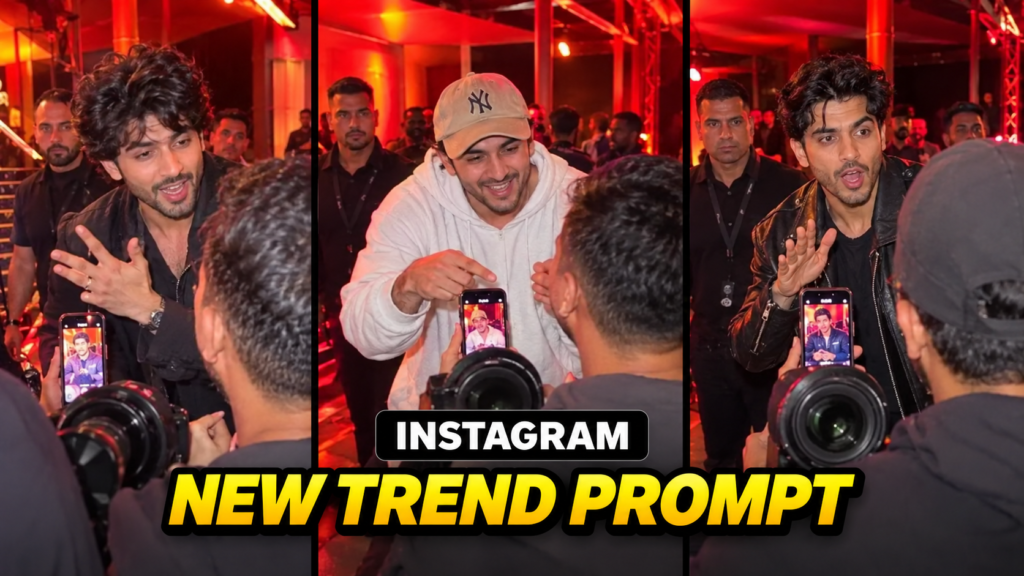
Instagram is full of new AI video trends, and one popular style is the fan-cam video. In this type of video, a person meets fans backstage, talks with them, makes funny gestures, and laughs while looking at a photo on someone’s phone.
With AI video tools, you can create your own version of this scene by using your photo. Google Flow can help you replace the main person in a reference video while keeping the original scene and movements similar.
In this guide, you will learn how to use the Instagram New Trend Prompt, which Google Flow settings to choose, and how to add the trending audio to your final video.
Instagram New Trend Prompt
Watch the Reference Video
Why Is the Instagram New Trend Becoming Popular?
Fan-cam videos are fun to watch because they look like casual recordings taken by someone at an event. The camera movement, background activity, and natural expressions make the scene feel realistic.
Here are a few reasons why creators enjoy this trend:
- Realistic video style: The handheld camera effect makes the clip look like a recording from a real event.
- Funny scenes: Playful expressions and reactions can make the video entertaining.
- Personalized characters: You can use your own photo to create a different version of the scene.
- Easy editing process: With a suitable reference video, a clear photo, and a detailed prompt, you can try creating a similar effect with Google Flow.
You can experiment with different outfits and characters to give your video a unique look. However, the final result will depend on your photo, the reference video, and the AI tool’s output.
Watch the Reference Video
Before creating your video, watch the reference clip to understand the camera movement, actions, and timing.
You will need two things for this process:
- A reference video without sound for use in Google Flow.
- The original video with sound, so you can add the audio to your finished creation.
Keep both files ready before starting. Use video and audio files that you have permission to use, especially if you plan to publish the result on Instagram.
Important: Upload the muted reference video to Google Flow, not the version containing the original audio.
How to Create the Instagram New Trend Video Using Google Flow
Follow these steps to create your own fan-cam-style AI video.
Step 1: Open Google Flow
Open Google Flow and start a new project. Make sure you are signed in to your Google account.
The available features and generation limits may vary depending on your account and the current version of Flow.
Step 2: Choose the Correct Settings
Before uploading your files, select the settings listed below.
| Setting | Recommended Option |
|---|---|
| Model | Omni |
| Mode | Ingredients |
| Aspect Ratio | 9:16 |
| Video Quality | 720p |
| Number of Outputs | 1x |
These settings are intended for a vertical video suitable for Instagram Reels. If your Flow interface has different options, choose the closest available settings.
Step 3: Upload Your Reference Video and Photo
Now upload the following files to your project:
- Muted reference video: This provides the original scene, camera movement, and actions.
- Your photo: This provides the face and appearance you want to use for the main character.
For better results, choose a clear photo with your face fully visible. A front-facing image with good lighting can help the AI reproduce your appearance more consistently.
If you want to use another person’s photo, get their permission first.
Step 4: Copy and Paste the Prompt
Once both files have been uploaded, copy the prompt from the next section and paste it into the Google Flow prompt box.
The prompt explains which person should be replaced and which parts of the original scene should remain unchanged.
Step 5: Tag the Uploaded Files
Use the @ symbol in the prompt box to select the correct uploaded files.
- @Video 1: Select your muted reference video.
- @Image 1: Select the photo you want to use for the main character.
Check these references carefully before generating the video. If you select the wrong file, the result may not match your expectations.
Step 6: Generate Your Video
Click the Generate button and wait for Google Flow to process your request.
Watch the result carefully. Check whether the face looks consistent, the movements match the scene, and the background remains similar to the reference.
If the result does not look right, try a clearer photo or adjust the prompt before generating another version.
Instagram New Trend Prompt (Copy and Use)
The following prompt is designed to replace the main character while keeping the rest of the reference scene as consistent as possible.
For the best results, upload your files and replace the file references with the correct tags in Google Flow.
Copy this prompt:
Video-to-video character replacement. Use @Video 1 as the main reference for the scene, camera movement, timing, lighting, background, and character actions.
Keep the handheld smartphone camera style, natural camera shake, original framing, red backstage lighting, surrounding crowd, bodyguards, and the fan standing in the foreground with a phone and a large camera lens. Preserve the overall arrangement and atmosphere of the original scene. Do not intentionally change the appearance or actions of the other people.
Replace only the main man in the center of the video, who approaches the fan, talks animatedly, and laughs, with the person shown in @Image 1.
Use @Image 1 as the primary identity reference for the replacement character. Match the person’s facial features, hairstyle, skin tone, and overall appearance as closely as possible. Adapt the person’s appearance naturally to the scene’s lighting and camera angle.
Keep the replacement character’s actions and timing aligned with @Video 1. The character walks toward the fan, stops in front of them, and speaks in a playful and expressive manner. He makes a pinched-finger gesture near his mouth, waves an open hand while talking, points toward the fan’s phone, leans forward to look at the screen, and then laughs enthusiastically while covering his forehead with one hand.
Preserve the original sequence of gestures, head movements, body movements, and facial expressions as closely as possible. Keep the camera perspective and background consistent throughout the clip.
Create a photorealistic result with natural skin texture, realistic movement, and lighting that matches the red backstage environment. Maintain consistent facial identity across frames. Avoid facial distortion, flickering, unnatural body movements, extra fingers, duplicate characters, or unnecessary changes to the scene.
The final video should look like a casual handheld fan-cam recording. Use a vertical 9:16 composition.
Note: AI video generation may not reproduce every movement or facial detail perfectly. You may need to generate more than one version to get a satisfactory result.
How to Add the Trending Audio Using VN or CapCut
After generating your video, you may notice that it has no sound. You can add the audio separately using a video editing app.
You can use VN, CapCut, or another editor that supports audio editing.
Step 1: Save Your Generated Video
Download the finished video from Google Flow and save it to your device.
Step 2: Open a Video Editing App
Open your preferred editing app and create a new project. Import the video you generated.
Step 3: Add the Audio
You have two options:
- Import the audio from a video you are allowed to use.
- Select the same or a similar sound from Instagram’s available music library.
If you extract audio from a reference clip, make sure you have the necessary rights to use it.
Step 4: Match the Audio With the Video
Move the audio track so that it matches the beginning and timing of your generated clip.
Trim any extra audio that extends beyond the video. Preview the result to make sure the sound and actions are reasonably synchronized.
Step 5: Export Your Video
Once everything looks good, export the video in a vertical 9:16 format.
You can now upload it to Instagram Reels.
Quick tip: You may also be able to upload the silent video directly to Instagram and select a suitable sound while publishing your Reel. Audio availability can vary by account and region.
Tips for Getting Better AI Video Results
A good prompt is helpful, but your input files also play an important role. Try these tips to improve your results.
1. Choose a Clear Photo
Use a well-lit photo where your face is easy to see. Avoid blurry images, heavy filters, and pictures where your face is partly hidden.
2. Use a Suitable Reference Video
Choose a reference clip with clear movements and a visible main character. A video with too much motion blur may make character replacement more difficult.
3. Check Your File References
Before generating, confirm that @Video 1 refers to the muted reference clip and @Image 1 refers to your chosen photo.
4. Keep the Original Scene Simple
A clear reference video can help the AI understand the main character’s movements and the surrounding environment. Scenes with many overlapping people or fast camera movements may be harder to reproduce accurately.
5. Try a Different Photo if Needed
If your face looks different in various frames, try another photo with better lighting and a more direct angle.
6. Add Audio After Generation
If your generated clip is silent, add a suitable audio track during editing or choose an available Instagram sound when publishing.
7. Be Transparent About AI Editing
If your video could be mistaken for genuine footage of a real event, label it as an AI-generated or AI-edited creation. Avoid presenting a fictional scene as proof that an actual meeting occurred.
Frequently Asked Questions (FAQs)
1. Can I Create the Instagram New Trend Video for Free?
You may be able to create it using the free generation allowance available to your Google Flow account. However, free credits, access to specific models, and generation limits can change. Check your account for the latest availability.
2. Can I Use My Friend’s Photo Instead of My Own?
Yes, you can try using a friend’s photo if you have their permission. Make sure they understand how their image will be used, particularly if you intend to publish the video publicly.
3. Why Does the Face Look Different in the Generated Video?
This can happen when the reference photo is blurry, the face is shown from a different angle, or the scene contains fast movement. Try using a sharper photo with clear facial features and generate the video again.
4. Why Are the Clothes or Body Shape Different?
AI tools may struggle to reproduce clothing and body proportions consistently, especially when the reference photo shows only the face. A suitable full-body photo may help if you want to reproduce your overall appearance.
Even with a full-body image, the AI may not match every detail perfectly.
5. Can I Upload the Video Directly to Instagram Reels?
Yes. Once the video is ready, you can upload it to Instagram Reels. You can also add available music, write a caption, and label the content as AI-edited where appropriate.
6. Do I Need the Original Audio While Generating the Video?
No. This workflow uses a muted reference video for generation. You can add suitable audio afterward using a video editor or Instagram’s music tools.
Conclusion
Creating an Instagram fan-cam-style AI video can be a fun way to experiment with Google Flow. You need a suitable reference video, a clear photo, and a detailed prompt that explains how the main character should be replaced.
Start by choosing the recommended settings, upload both files, tag them correctly, and paste the prompt into Google Flow. After generating your video, review the result and add suitable audio using VN, CapCut, or Instagram.
Remember that AI results can vary, so you may need to make a few attempts before getting the look you want. With the right inputs and some editing, you can create a personalized video for your next Reel.

Pratiksha Thakare is a Vedic astrology writer and spiritual researcher with deep study in Jyotish, numerology, and Hindu philosophy. She writes to make ancient wisdom simple and accessible for modern Indian readers.