
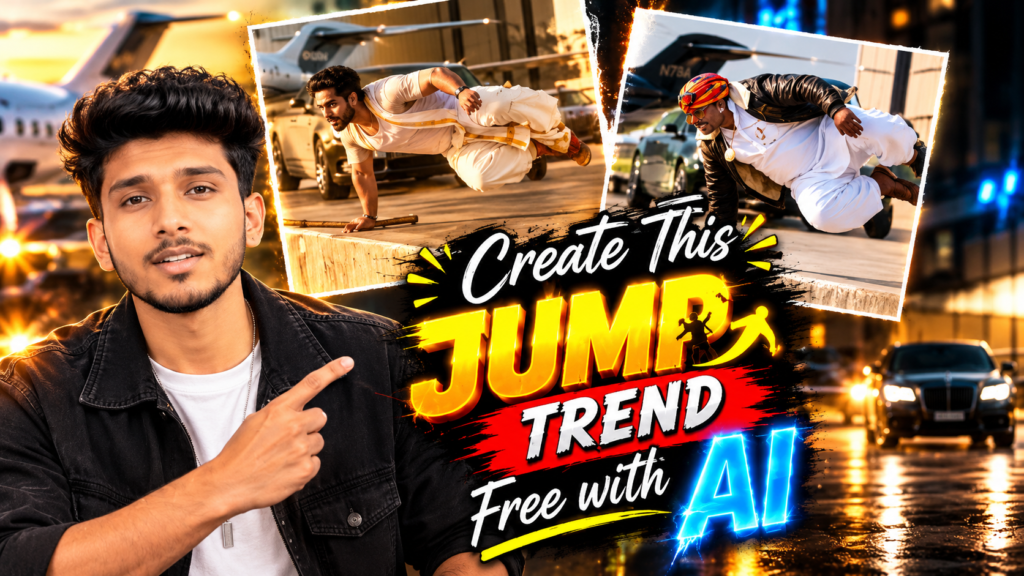
Want to create the trending Parkour Jump AI video using your own photo? You can make a similar video with Google Flow by combining a reference video with a picture of yourself.
The Parkour Jump Trend features a person running through a private airport and performing incredible jumps over concrete walls. The person makes long dives, pushes off walls with both hands, and swings their legs over obstacles. Luxury cars, private jets, and beautiful sunset lighting make the scene look like an action movie.
The best part is that you can try this effect without filming the stunts yourself. You need a reference video, a clear photo, and a suitable prompt for Google Flow.
In this guide, you will learn how to prepare your files, use the Parkour Jump Trend prompt, and create your own AI video step by step.
Parkour Jump Trend Video Prompt
Watch the Parkour Jump Trend Reference Video
Before creating your video, watch the reference clip you want to recreate.
The reference video helps Google Flow understand the movements, camera angles, and sequence of jumps you want to reproduce. You can use a suitable video as a guide for your own AI-generated version.
Download the reference clip using the download option provided with your source video, if available. Before uploading it, open it in an editor such as CapCut or VN and remove its audio.
How to Create the Parkour Jump Video with Google Flow
Follow these steps to make your own Parkour Jump AI video.
Step 1: Download the Reference Video
Save the parkour clip you want to use as your reference. Open it in CapCut or VN and mute the original audio if needed.
Step 2: Open Google Flow
Open Google Flow and start a video creation project. If Ingredients mode is available, select it and choose a vertical 9:16 aspect ratio. You can select 720p quality and one output if those options are available in your account.
Step 3: Upload Your Files
Upload the muted reference video and a clear photo of yourself. Choose a picture in which your face, hairstyle, and clothing are easy to see.
Step 4: Add the Parkour Jump Prompt
Copy the complete prompt from the section below and paste it into Google Flow.
Use the @ mention feature to select your uploaded reference video as @video1 and your personal photo as @image1. Make sure the tags point to the correct files.
Step 5: Generate Your AI Video
Check your settings and submit the prompt. Google Flow will attempt to recreate the parkour movements using your uploaded photo as the character reference.
The result may vary depending on the reference video, available features, and generation settings. If the first result does not look right, you can adjust the prompt or try another generation.
Step 6: Edit and Export the Video
Once your video is ready, open it in CapCut or VN. Add a suitable trending audio track, adjust the video if necessary, and export it in vertical format for Instagram Reels.
Keep in mind that free access, generation limits, and available features may change over time.
Things to Check Before Using the Prompt
Before generating your video, make sure you have prepared everything correctly.
1. Choose a Suitable Reference Video
Use a reference clip that clearly shows the running, jumps, wall vaults, and camera movements you want to recreate. A clear video can help the AI follow the intended action sequence.
2. Upload a Clear Photo
Choose a well-lit picture with your face clearly visible. A front-facing image is often a useful starting point because it gives the AI a better view of your facial features.
3. Check Your Google Flow Settings
If these options are available, try the following settings:
| Setting | Suggested Option |
|---|---|
| Creation mode | Ingredients |
| Aspect ratio | 9:16 vertical |
| Resolution | 720p |
| Number of outputs | 1 |
Your available options may differ depending on your account and the current version of Google Flow.
4. Tag the Correct Files
Use the @ menu in the prompt field to select the reference video and your photo. Check that the video and image references are assigned correctly before generating the result.
5. Add Music After Generation
If your generated clip does not contain music, you can add an appropriate audio track in CapCut or VN. Choose audio that is available for your intended use and follows the platform’s music rules.
Parkour Jump Trend Prompt for Google Flow
Here is the complete Parkour Jump Trend prompt. It is designed to use the reference video for the action sequence and your photo for the main character’s appearance.
For the best results, upload both files first and replace the reference tags with the correct files using Google Flow’s @ menu.
Copy the Full Prompt Below
Recreate the parkour sequence shown in @video1 as closely as possible, using the person in @image1 as the main character. Follow the reference video’s action sequence, camera direction, framing, pacing, and transitions wherever possible.
REFERENCE VIDEO — MOVEMENT AND SCENE
Use @video1 as the primary reference for the action and visual style.
Match the camera position, camera height, perspective, framing, and zoom as closely as possible.
Follow the side-tracking camera movement and pan direction shown in the reference video. Preserve the original sequence of cuts and transitions as closely as the generation system allows.
Recreate the main character’s movements in the same order, including:
- Running steps and forward movement.
- Long, extended dives over the concrete walls.
- Placing both hands on the top of a wall.
- Tucking the knees and swinging the legs over the obstacle.
- Vaulting over the walls and landing on the other side.
- Maintaining the same general speed, direction, and energetic parkour style.
Follow the route and approximate distances shown in the reference. Keep the obstacles and background elements consistent with the original scene.
Preserve the visual setting, including the private airport apron, concrete barriers, hangar, parked luxury vehicles, private jets, red-and-white marker post, and wooden planks on the ground.
Reproduce the warm sunset atmosphere, golden light, soft haze, realistic shadows, depth of field, and natural motion blur.
Keep the generated clip close to the reference video’s duration and overall pacing, within the available generation limits.
CHARACTER APPEARANCE — USE @image1
Use @image1 as the primary appearance reference for the main character.
Preserve the person’s recognizable facial identity, including the face shape, eyes, eyebrows, nose, jawline, lips, skin tone, and facial hair, if present.
Match the hairstyle, hair length, texture, and color shown in the uploaded photo.
Use the clothing, footwear, and accessories visible in @image1 as the character’s outfit reference.
Keep the person’s general body proportions consistent with the uploaded image.
Do not copy the original character’s face, hairstyle, clothing, traditional outfit, bare feet, or jewellery from @video1. Use the reference video for movement and scene composition, not for the main character’s identity.
Integrate the person naturally into the airport environment. Match the lighting, shadows, perspective, and contact with the ground and walls.
Maintain consistent facial features and clothing throughout the video. Avoid unnecessary changes to the person’s appearance between frames.
AUDIO INSTRUCTIONS
Do not reproduce or continue the original music, dialogue, or soundtrack from @video1.
Do not add dialogue, narration, singing, lyrics, or speech.
If natural ambient audio is supported, use only subtle environmental sounds, such as:
- Footsteps on concrete.
- Hands making contact with a concrete wall.
- Gentle outdoor wind.
- A faint aircraft engine in the distance.
Otherwise, generate the video without audio so that music can be added during editing.
STRICT VISUAL REQUIREMENTS
Keep the camera movement and framing as close to @video1 as possible.
Preserve the sequence and style of the parkour movements without introducing unrelated actions.
Do not add extra people or unnecessary objects.
Do not include text, subtitles, watermarks, logos, or readable vehicle number plates.
Avoid distorted hands, extra fingers, additional limbs, unnatural body proportions, and facial distortions.
Keep the airport setting consistent throughout the clip.
Do not make the character appear to speak or move their lips as if talking.
Use a vertical 9:16 composition suitable for Instagram Reels.
Aim for realistic human movement, natural lighting, cinematic detail, and smooth transitions.
Why Is the Parkour Jump Trend Popular?
The Parkour Jump Trend combines exaggerated action with realistic-looking environments, making it entertaining to watch.
Here are a few reasons why this style of AI video attracts attention.
1. Incredible Stunts
The character performs long dives and dramatic wall jumps that would be difficult for most people to film in real life.
2. Cinematic Backgrounds
Private jets, luxury cars, concrete walls, and sunset lighting give the video the appearance of a scene from an action film.
3. Personalized Characters
Creators can use their own photos to make the character resemble them. This makes the result feel more personal and interesting to share.
4. Short-Form Video Appeal
The fast movements and unexpected jumps work well in short videos. Viewers can quickly understand the concept without watching a long introduction.
5. Simple Creative Process
You do not need to record yourself performing the stunts. You can experiment with a reference clip, an image, and a suitable AI video prompt instead.
However, viral reach is never guaranteed. Your video’s performance will depend on factors such as its quality, presentation, audience, and timing.
Tips for Getting Better Parkour Jump AI Video Results
Follow these suggestions to improve your results.
Use a High-Quality Photo: Choose a clear image with good lighting and visible facial features. Avoid heavily filtered pictures or images with the face covered.
Select a Clear Reference Clip: A reference video with visible movements and fewer distracting camera changes may be easier for the AI to interpret.
Check the Character’s Appearance: Review the generated video to see whether the face, hairstyle, and outfit remain consistent throughout the sequence.
Generate Another Version if Needed: AI video generation can produce different results each time. If the movements or face look incorrect, try again or simplify the instructions.
Avoid Unnecessary Prompt Changes: Start with the provided prompt. If something goes wrong, change only the relevant instructions instead of rewriting everything.
Edit Before Posting: Use CapCut or VN to trim unwanted frames, adjust the timing, and add suitable music. Check the final video from beginning to end before uploading it.
Choose the Correct Format: Use a vertical 9:16 layout for Instagram Reels. Check that the main character remains visible and that important movements are not cropped out.
Frequently Asked Questions
Is the Parkour Jump Trend prompt free?
Yes, you can use the prompt provided in this article without paying for the prompt itself. However, Google Flow’s access, usage limits, and generation features may depend on your account and its current plan.
Why do I need a reference video?
The reference video gives the AI a visual guide for the parkour movements, scene layout, and camera direction. Without it, the AI would have to interpret the action from written instructions alone, which may produce a different result.
Can I use my own clothes and hairstyle?
Yes. The prompt instructs Google Flow to use your uploaded photo as a reference for your appearance, including your hairstyle and clothing. The final result may not reproduce every detail perfectly.
Why does my generated video have no music?
The generation process may not include the soundtrack you want. You can add suitable music in CapCut or VN after creating the video. Check the audio’s usage permissions before publishing.
Can girls use the Parkour Jump Trend prompt?
Yes. Anyone can try the prompt by uploading their own photo. The instructions ask the AI to use the uploaded image as the main character’s appearance reference.
What should I do if the face changes during the video?
Start with a clear photo and make sure you have selected the correct image reference. You can also strengthen the instructions about preserving facial identity and character consistency. Even with these instructions, exact identity preservation is not guaranteed in every frame.
Can I post the finished video on Instagram Reels?
Yes, you can prepare the video for Instagram Reels. Before publishing, review the result, use audio you are allowed to post, and follow Instagram’s current content policies.
Conclusion
The Parkour Jump Trend is an interesting way to experiment with AI video creation. With Google Flow, a suitable reference clip, your own photo, and the prompt in this guide, you can try creating a cinematic airport parkour video featuring yourself.
Start by uploading your files, selecting the correct references, and pasting the prompt. Once the video is generated, review it, make any necessary edits, and add suitable music before sharing it on Instagram Reels.
Ready to try it? Copy the prompt, upload your photo, and create your own version of the Parkour Jump Trend.

Pratiksha Thakare is a Vedic astrology writer and spiritual researcher with deep study in Jyotish, numerology, and Hindu philosophy. She writes to make ancient wisdom simple and accessible for modern Indian readers.