
Have you seen the trending Afgan Jalebi AI video featuring a man standing in front of a beautiful golden sunset, dramatic clouds, flying dust, and cinematic music visuals? This style of video looks like a scene from a professional music video, but you can create something similar using AI video-generation tools.
The best part is that you do not need professional video-editing skills, an expensive camera, or a film crew. With a good reference image, a detailed AI prompt, and Google Flow, you can create your own Afgan Jalebi-inspired cinematic video for Instagram Reels, YouTube Shorts, and other social media platforms.
In this article, you will learn how to create the Afgan Jalebi viral AI video step by step, how to use the reference image, and how to generate cinematic movement using a ready-to-copy prompt.
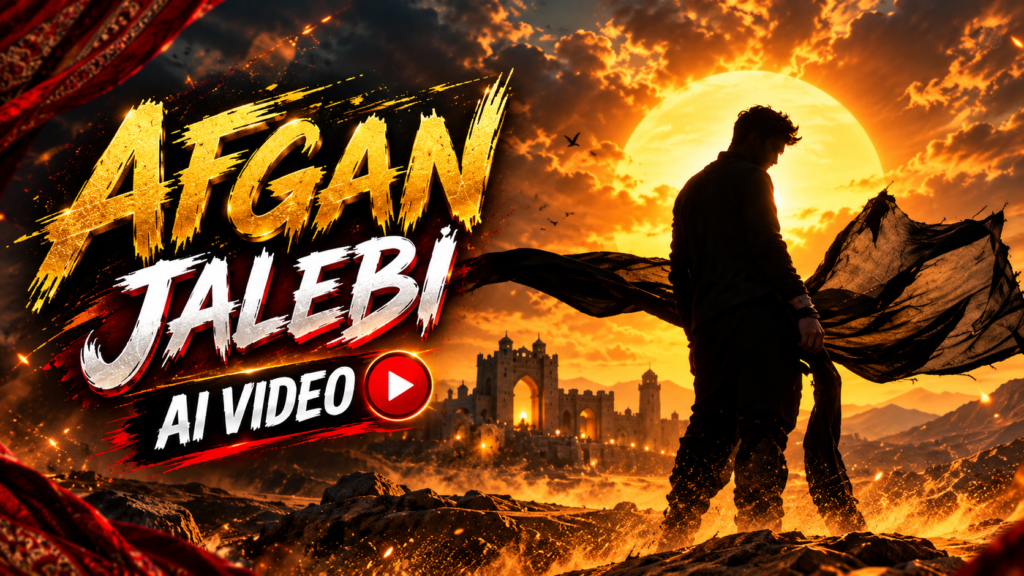
Afgan Jalebi AI Video Prompt
Vertical 9:16 cinematic fashion reel, golden hour in a vast desert with sand dunes. The man from the reference image (keep his exact face, hairstyle and beard) wears a black kurta-shalwar, a dark checked scarf and aviator sunglasses. Opens with an extreme close-up of him adjusting his sunglasses, gold bracelet visible. Cut to a low-angle slow-motion shot of his boot stepping into the sand, sand particles flying. Then a medium shot of him sitting on the dune in a stylish pose while a long black cloth flutters dramatically in the wind. A large round mirror reflector flashes the warm sunlight. Warm orange-teal color grade, shallow depth of field, shot on iPhone 15 Pro, smooth slow motion, soft dust in the air, ultra realistic, 4K.
What Is the Afgan Jalebi AI Video Trend?
The Afgan Jalebi AI video trend is a cinematic video style inspired by dramatic music visuals and atmospheric storytelling. It combines a powerful background, a silhouetted character, warm lighting, and smooth camera movements to create an eye-catching result.
A typical video in this style may include:
- A man standing in front of a huge golden sunset.
- Dark clothing and a mysterious silhouette.
- Wind blowing a long piece of black fabric.
- Orange clouds, distant mountains, and ancient architecture.
- Flying dust, glowing particles, and cinematic lighting.
- Dramatic camera movement synchronized with the music.
These visual elements make the video look polished and suitable for short-form content.
However, AI-generated videos do not automatically become viral. The result depends on the visual quality, music selection, editing, audience interest, and how engaging the first few seconds are.
Tools Required to Create the Afgan Jalebi AI Video
Before starting, prepare the following tools and materials.
| Tool or material | Purpose |
|---|---|
| Google Flow | Generate and animate the AI video |
| Reference image | Guide the scene, composition, and visual style |
| AI video prompt | Describe the character, movement, lighting, and camera |
| CapCut or another video editor | Add music, effects, and final adjustments |
| Instagram Reels or YouTube Shorts | Publish your finished video |
You can use the reference image from this tutorial as inspiration or create your own image with a similar cinematic composition.
Google Flow supports video generation from text prompts, reference images, and start or end frames. Available features depend on the model, subscription, and region. Official Google Flow guide.
Step 1: Prepare Your Afgan Jalebi Reference Image
The first step is to prepare a suitable reference image. A strong reference helps establish the character’s appearance, scene composition, lighting, and overall atmosphere.
For the best result, choose a vertical image with these elements:
- A person standing in silhouette.
- A large golden sun behind the person.
- A dramatic desert or mountain environment.
- Dark, flowing fabric moving in the wind.
- Warm orange and golden colors.
- Enough space around the character for natural movement.
You can use an existing image as visual inspiration or generate a new image with an AI image generator.
If you want the main character to look like you, prepare a clear photograph of yourself. A front-facing or three-quarter portrait with good lighting is a useful starting point.
Important: Use your own photograph or an image you have permission to use. If you use a reference image containing a recognizable person, avoid presenting the generated result as authentic footage of that person.
Step 2: Open Google Flow
Now open Google Flow in your browser.
- Visit https://labs.google/fx/tools/flow.
- Sign in with your Google account.
- Create a new project.
- Choose the available video-generation option.
- Upload your reference image or add it as an ingredient, depending on the selected workflow.
- Choose a portrait aspect ratio of 9:16 if it is available for your selected model.
- Enter the AI video prompt provided below.
- Review the available duration and generation settings.
- Generate the video and wait for the result.
The exact interface and available generation options may vary. If you want to animate an existing image, look for the image animation or image-to-video workflow.
For more consistent results, keep your visual reference and written prompt aligned. For example, if your reference shows a man standing in front of a sunset, do not ask the AI to suddenly change the scene into a modern city.
Step 3: Copy the Afgan Jalebi AI Video Prompt
The prompt is one of the most important parts of this process. It tells the AI how the character should move, what the background should look like, how the camera should behave, and which visual effects should appear.
Copy the following prompt and use it in a compatible Google Flow video-generation workflow.
Afgan Jalebi Viral AI Video Prompt
Copy the prompt below:
Create a cinematic, photorealistic vertical 9:16 music-video-style scene inspired by the dramatic atmosphere of the Afgan Jalebi visual trend. Generate an approximately 8-second video, or use the closest duration supported by the selected model.
SCENE AND CHARACTER:
A lone young man stands on a rugged desert landscape during a spectacular golden sunset. He wears a dark, simple outfit and is seen mostly in silhouette. His posture is calm, confident, and slightly mysterious. A massive glowing golden sun sits low behind him, creating a powerful cinematic backlight. Ancient Afghan-inspired architectural structures stand in the distant background, with rugged mountains visible on the horizon.
WIND AND FABRIC MOVEMENT:
A long piece of lightweight black fabric flows dramatically in the strong desert wind. The fabric moves naturally from side to side, creating large, elegant waves. Fine dust rises around the man’s feet. Small glowing particles drift through the air and catch the warm sunlight. All fabric movement must look physically realistic, with natural folds, believable weight, and continuous motion.
CAMERA MOVEMENT:
Begin with a wide cinematic shot showing the man’s silhouette, the enormous sun, and the surrounding landscape. Slowly push the camera forward toward the character while maintaining a stable composition. Add a subtle cinematic camera drift and gentle environmental movement. Keep the subject as the main focal point throughout the shot. Do not use sudden zooms, random cuts, or excessive camera shake.
LIGHTING AND ATMOSPHERE:
Use rich golden-orange sunlight, dramatic amber clouds, deep shadows, realistic atmospheric haze, and volumetric sun rays. The sun creates a glowing outline around the character and the moving fabric. Add realistic windblown sand, subtle sparks, and fine particles near the ground. Use high dynamic range, detailed textures, cinematic contrast, and a premium music-video color grade.
VISUAL QUALITY:
Photorealistic cinematic rendering, natural motion, realistic fabric physics, detailed landscape textures, dramatic backlighting, smooth camera movement, consistent character appearance, and professional music-video composition.
CONTINUITY RULES:
Keep the same character, outfit, body proportions, environment, sunset position, and lighting throughout the entire clip. Do not add extra people, unnecessary objects, scene changes, or random transitions. Avoid distorted hands, duplicated limbs, flickering backgrounds, unnatural body movement, and sudden changes in the character’s appearance.
Do not generate text, logos, watermarks, subtitles, or a fake play button inside the scene. Add the title and music during editing if required.
END OF PROMPT.
How to Get Better Results With This Prompt
The prompt is designed to produce a similar cinematic atmosphere, not an exact copy of every possible reference video. AI results can vary between generations.
If you want to recreate a specific reference video more closely, upload that video or use the relevant reference-video feature if it is supported by your selected Flow model. Describe the original camera movements, timing, and transitions instead of relying on a text prompt alone.
Step 4: Generate the Video in Google Flow
After entering the prompt, check the settings before generating the clip.
| Setting | Recommended choice |
|---|---|
| Aspect ratio | 9:16 vertical |
| Duration | Around 8 seconds, where supported |
| Visual style | Cinematic and photorealistic |
| Camera movement | Slow forward push |
| Lighting | Golden-hour backlighting |
| Motion | Natural fabric and wind movement |
These are suggested creative settings rather than mandatory requirements. Select the options available in your account.
Click the generation button and wait for the result.
Once the video is ready, watch the complete clip before downloading or exporting it. Check whether the character stays consistent, the fabric moves naturally, and the background remains stable.
If the result does not look right, adjust only the part of the prompt that needs improvement. For example, if the fabric barely moves, strengthen the instructions about wind and fabric motion rather than rewriting the entire prompt.
Step 5: Make the Video More Cinematic
The first generated result may need a few improvements. Small changes can make the final video look much more professional.
Improve the character movement
If the person looks completely frozen, add subtle movement instructions. Ask for a gentle shift in posture, natural clothing movement, or a slight turn of the head.
Avoid requesting too many actions at once. Simple movements are often easier for an AI model to render consistently.
Improve the sunset
The golden sun is one of the most important visual elements. If the lighting looks flat, emphasize the strong backlight, glowing cloud edges, atmospheric haze, and warm golden highlights.
Improve the fabric
The flowing black fabric creates much of the drama in this scene. Ask for continuous wind-driven motion, realistic folds, and natural changes in direction.
If the fabric becomes distorted, reduce the amount of movement and keep the camera relatively steady.
Maintain the same visual style
Use the same reference image and compatible settings when generating variations. Google Flow’s reference-based workflows can help maintain visual consistency, although the results are not guaranteed to match perfectly.
Step 6: Add Music and Effects in CapCut
Once your AI video is ready, you can polish it in CapCut or another video editor.
Follow these steps:
- Open your video editor and create a new project.
- Import the generated vertical video.
- Set the canvas to 9:16 if necessary.
- Add a suitable music track or permitted audio recording.
- Align the strongest visual moment with an important beat in the music.
- Adjust brightness, contrast, highlights, and shadows.
- Add subtle motion blur or cinematic effects only if they improve the footage.
- Export the final video using the best quality available.
For a music-inspired video, choose audio that matches the dramatic mood. If you want to use the original Afgan Jalebi song, check whether the track is available through the relevant platform’s licensed music library or whether you have the required permission.
Do not assume that a song is free to reuse simply because it is popular on social media.
Step 7: Create an Attractive Thumbnail
A good thumbnail can help people understand the video’s theme before they watch it.
For an Afgan Jalebi-inspired thumbnail, use the following design:
- A silhouetted man in the foreground.
- A large golden sun behind the character.
- Dramatic orange clouds and flying dust.
- Dark red and black decorative borders.
- Bold gold and white title lettering.
- A clear, high-contrast composition.
You can add text such as “AFGAN JALEBI AI VIDEO” using an image editor after generating the background. Adding text separately often gives you better control over spelling, spacing, and typography than asking an image generator to render every word.
Keep the title short enough to read on a mobile screen. Avoid covering the main character’s head or the brightest part of the sun with unnecessary graphics.
Step 8: Upload Your Video to Instagram Reels or YouTube Shorts
After editing, export the finished video in vertical format and preview it on your phone.
Use a short caption that tells viewers what they are watching. For example:
“Created this cinematic Afgan Jalebi-inspired AI video using Google Flow. The golden sunset and dramatic fabric movement make the scene look like a movie. What do you think of the result?”
You can also use relevant hashtags such as:
#AfganJalebi #AIVideo #GoogleFlow #AIVideoEditing #AIReels #ViralVideoTrend
Choose hashtags that accurately describe your content instead of adding unrelated trending tags.
For better audience retention, begin with the strongest visual moment. A striking silhouette, flowing fabric, or glowing sunset can provide an engaging opening. Keep the pacing clean and avoid adding long introductions before the main scene.
Remember that no prompt, hashtag, or posting time guarantees viral reach. Focus on producing an original, visually appealing video and learning from audience engagement.
Common Problems and Their Solutions
| Problem | Possible solution |
|---|---|
| The character’s appearance changes | Use a clear reference image and reinforce character consistency |
| The fabric looks unnatural | Simplify the movement and emphasize realistic cloth physics |
| The sunset looks dull | Request stronger golden backlighting and atmospheric haze |
| The camera moves too quickly | Ask for a slow, steady push-in with minimal camera shake |
| The background flickers | Reduce scene complexity and avoid conflicting instructions |
| The video looks static | Add subtle body movement, flowing fabric, and drifting dust |
| The title text looks incorrect | Add the title separately in an image or video editor |
| The result does not match the reference | Use supported reference-video or frame-based tools and refine the prompt |
Tips for Creating Better AI Music Videos
Here are a few additional tips to improve your workflow:
1. Start with one strong visual idea. A man against a golden sunset is already visually striking. Too many unrelated elements may make the result confusing.
2. Keep camera movement simple. A slow push-in can create a cinematic feeling without introducing unnecessary motion.
3. Use references carefully. Clear images with a consistent visual style can help the model understand the character and environment.
4. Generate variations. If the first result has poor fabric movement or weak lighting, try a revised prompt or another generation.
5. Edit after generation. Music synchronization, color correction, and typography can make a substantial difference to the final presentation.
6. Make the video your own. Try a different outfit, location, sunset color, camera angle, or visual effect to create a distinctive version of the trend.
Frequently Asked Questions
1. How can I create the Afgan Jalebi viral AI video?
You can create an Afgan Jalebi-inspired AI video by preparing a suitable reference image, opening Google Flow, entering a detailed video prompt, and generating a cinematic clip. You can then add music and final effects using a video editor.
2. Can I create the Afgan Jalebi AI video using Google Flow?
Yes. Google Flow supports several video-generation workflows, including text-to-video, image animation, and reference-based video creation. The exact options depend on the selected model and your account’s available features.
3. Do I need my own photo to create this video?
No. You can generate a fictional character or use a suitable reference image that you have permission to use. If you want the main character to resemble you, a clear personal photo can be used where supported.
4. Can I make the video in 9:16 format?
Yes, if portrait generation is supported by your selected workflow. The 9:16 aspect ratio is suitable for Instagram Reels and YouTube Shorts.
5. Is the Afgan Jalebi AI video method free?
The cost depends on the tool, account, subscription, and available generation credits. Check the current Google Flow interface for the features and usage limits available to you. Do not assume that every generation or export option is free.
6. Why does my AI video look different from the reference image?
AI models interpret prompts and reference images rather than reproducing every detail perfectly. Improve the result by using a clearer reference, simplifying the requested movement, and refining the prompt.
7. Can I upload this AI video to Instagram?
You can generally publish original AI-generated content, subject to the platform’s current rules and the rights associated with any images, music, or other materials you use. Follow applicable disclosure requirements when they apply.
8. Will this prompt guarantee a viral video?
No. The prompt can help you create a cinematic video, but viral reach depends on several factors, including audience interest, the opening hook, editing quality, originality, and viewer engagement.
Conclusion
Creating an Afgan Jalebi-inspired viral AI video is a straightforward creative project when you combine a strong visual reference, a detailed prompt, and careful editing.
Start by preparing a suitable image, generate the scene in Google Flow, and focus on the details that make the visual memorable: the golden sunset, the silhouetted character, flowing black fabric, and cinematic camera movement. Finish the video in CapCut or another editor by adding suitable music, adjusting the colors, and creating a clean vertical export.
You can use the prompt in this article as a starting point and customize it to create your own version. Experiment with different lighting, locations, and movements to develop a unique style for your social media content.

Pratiksha Thakare is a Vedic astrology writer and spiritual researcher with deep study in Jyotish, numerology, and Hindu philosophy. She writes to make ancient wisdom simple and accessible for modern Indian readers.