
AI-generated 3D construction and building transformation videos have taken social media by storm. In these clips, a plot of land with raw pillars and foundations appears to rapidly construct itself into a finished house, café, or restaurant within seconds. You can create the exact same cinematic effect for your own property using free AI tools on your phone or computer.
Here is the complete step-by-step workflow using ChatGPT and Google Flow.
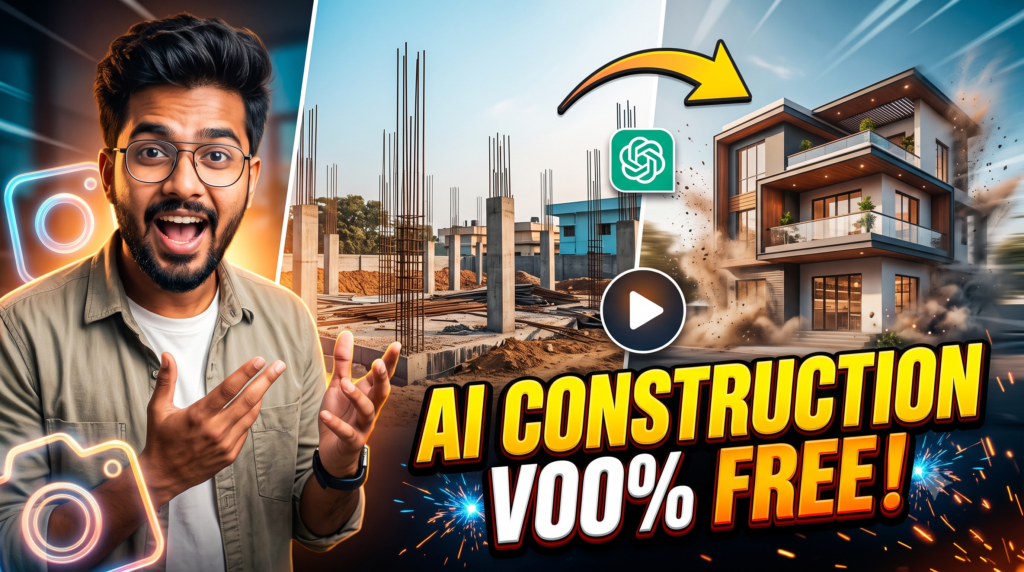
IMAGE PROMPT
VIDEO PROMPT
Prerequisites
- A clear photo of your finished house, café, or restaurant.
- Image Prompt: Generates an accurate early-stage construction photo from your existing building shot.
- Video Prompt: Instructs the video model to animate the transition from foundation to completed structure.
Step 1: Copy the Prompts
Open the link provided in the bio and navigate to the featured post. Copy both the Image Prompt and the Video Prompt to your clipboard or notes.
Step 2: Generate the Construction Image in ChatGPT
- Open ChatGPT.
- Upload the clear photo of your completed house or commercial space.
- Paste the Image Prompt you copied from the bio link and hit submit.
- ChatGPT will analyze the perspective, surrounding environment, and architectural footprint of your building to generate an image showing the same location in its earliest construction phase—featuring rebar, trenches, and concrete foundations.
- Save this newly generated construction photo to your device.
Step 3: Set Up a Project in Google Flow
- Visit the Google Flow website.
- Click on ‘New project’.
- Configure the project settings to match the recommended parameters (such as aspect ratio and resolution).
Step 4: Add Both Images and the Video Prompt
- In the project timeline, upload both images:
- The ChatGPT-generated construction photo (set as the starting phase).
- Your original finished building photo (set as the final result).
- Paste the copied Video Prompt into the prompt input box.
Step 5: Generate Your Video
Click Next (or Generate). The model will interpolate the physical build process, rendering structural steel, concrete slabs, glass, and facade elements snapping into place until your real building emerges. Once finished, download your video and share it across your social channels.

Pratiksha Thakare is a Vedic astrology writer and spiritual researcher with deep study in Jyotish, numerology, and Hindu philosophy. She writes to make ancient wisdom simple and accessible for modern Indian readers.