
Artificial intelligence video generation is transforming social media content creation at an unprecedented pace. Over the past few weeks, a brand new visual trend has taken platforms like Instagram Reels, TikTok, and YouTube Shorts by storm: Cinematic Cricket AI Videos. Creators are turning ordinary, single-portrait photos into hyper-realistic, slow-motion video sequences showing themselves batting with intense athletic form on rustic village grounds and professional stadiums.
Whether you are an aspiring creator looking to ride the current algorithm wave, a digital artist exploring generative video pipelines, or someone curious about how to animate yourself hitting a clean six over deep mid-wicket, this comprehensive tutorial has you covered.
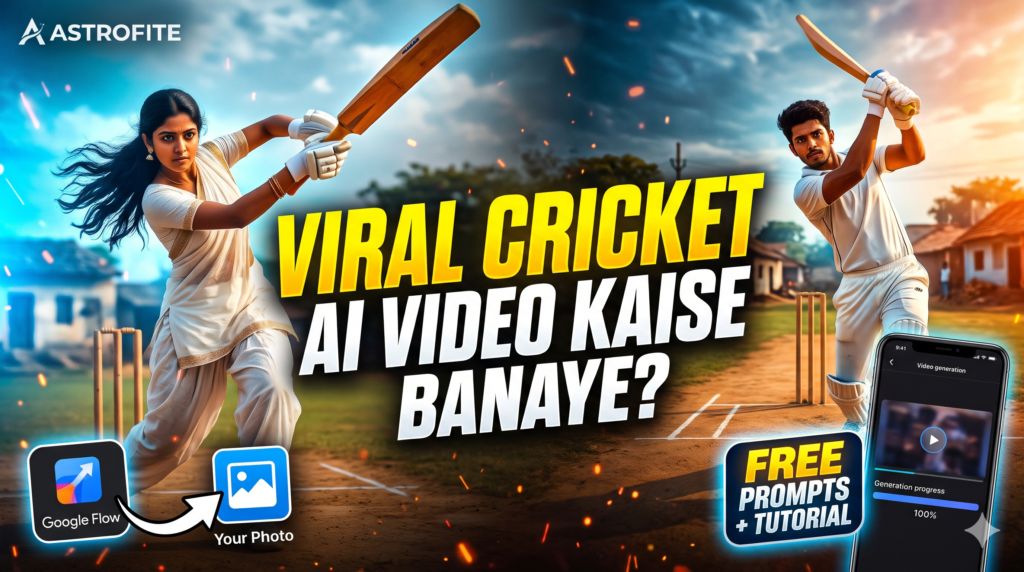
In this in-depth guide published exclusively for Astrofite readers, we break down everything you need to know: how Google Flow works, the optimal generation settings, curated prompt formulas for both male and female avatars, the exact negative prompts required to avoid unwanted glitches, and post-production techniques to maximize your viral reach.
The Rise of Generative Sports Content on Social Media
Cricket is more than just a sport across South Asia and beyond; it is an emotion and a cultural phenomenon. When you blend traditional attire or relatable street aesthetics with dynamic slow-motion sports cinematography, you strike a chord with millions of casual viewers.
Previously, creating high-definition slow-motion video of an athletic sequence required:
- Professional mirrorless or cinema cameras capable of shooting at 120fps or higher.
- Good physical execution of complex batting mechanics.
- Lighting kits, stabilization rigs, and extensive location scouting.
With modern multimodal AI systems, image-to-video diffusion models can interpolate 3D spatial dynamics, lighting shifts, and skeletal movement directly from a single reference 2D image. By training motion vectors on sports physics and cinematic lighting conditions, tools like Google Flow can extrapolate how a person would look mid-swing, swinging a bat into the sunset, with fabric fluttering naturally in the wind.
What is Google Flow?
Google Flow is an intuitive generative media workspace developed by Google Labs designed to streamline both image and video generation tasks under a single unified interface. Leveraging Google’s high-speed video foundation models—notably models such as Omni 1.1 Flash—Flow enables creators to feed reference images alongside directional text prompts to render high-fidelity, temporally consistent video loops.
Ready-to-Use Prompts (Male & Female Variations)
Key advantages of using Google Flow for this specific workflow include:
- Consistent Character Geometry: It retains high facial fidelity to the source photo without warping expressions.
- Accurate Kinetic Physics: Generates natural swing mechanics and fabric physics (e.g., fluttering dupattas or jerseys).
- Fast Generation Cycles: Omni 1.1 Flash processes 8 to 10-second clips rapidly without requiring heavy local GPU hardware.
Preparing Your Input Photo for Maximum Accuracy
Before jumping into the tool, the quality of your source input determines roughly 60% of your final output fidelity. If you feed an AI model a blurry selfie taken in low light with extreme face filters, the diffusion engine will struggle to map accurate facial landmarks.
Best Practices for Your Source Photo:
Prompt engineering for generative video requires describing not just what is in the frame, but also camera position, lighting, kinetic motion, and fabric physics. Here are the optimized prompts ready to copy and paste.
1. Female Batter Variation (Traditional Aesthetic)
This prompt replicates the viral aesthetic featuring traditional attire juxtaposed with powerful batting form.
🏏 Viral Cricket Video Prompt
2. Male Batter Variation (Sporty & Casual)
For male avatars, this prompt creates a stylish, athletic moment reminiscent of professional highlight reels.
🏏 Viral Cricket Video Prompt
The Crucial Negative Prompt (Preventing Common AI Glitches)
Generative AI models often stumble when rendering complex sports equipment and rapid biomechanical motions. Without strict boundary constraints, you might see extra floating bats, warped limbs, or glitchy cricket stumps.
Always copy and paste this exact string into the Negative Prompt field:
bats, multiple bats, floating objects, changing clothes, shifting background, distorted hands, extra limbs, incorrect cricket stumps, flickering, unnatural body movement, sudden camera cuts, artificial studio lighting, cartoon, illustration, low resolution, blurry face, text, subtitles, watermark, logo
Why This Negative Prompt Works:
multiple bats / floating objects: Prevents the diffusion engine from creating an extra bat in mid-air when swinging.incorrect cricket stumps: Ensures standard 3-wicket cricket stumps instead of random wooden posts.flickering / sudden camera cuts: Enforces a single continuous camera take rather than choppy scene transitions.
- Front-Facing or Slight Three-Quarter Profile: Ensure both eyes, eyebrows, and the jawline are clearly visible.
- Neutral or Subtle Smile: Extreme facial expressions (like shouting or grimacing) can distort the face during video interpolation.
- Natural, Balanced Lighting: Avoid harsh shadows, strong colored LED lights, or backlit scenarios where the face is underexposed.
- Minimalistic Background: A clean, uncluttered background prevents the background elements from bleeding into the generated cricket pitch.
- No Heavy Filters: Avoid pre-applying heavy beauty or smoothing filters; raw camera output produces far better depth estimation.
Step-by-Step Tutorial: Generating the Video
Follow these exact steps inside the Google Flow application:
[Upload Reference Image] ➡️ [Configure Generation Parameters] ➡️ [Insert Descriptive Prompt] ➡️ [Apply Negative Prompt] ➡️ [Render 8s Clip]
Step 1: Open Google Flow and Start a New Project
Launch the Google Flow application on your mobile device or open the desktop web dashboard. Tap the + New button on the dashboard to initiate a fresh canvas.
Step 2: Upload Your Base Image
Tap the + (Plus) icon in the prompt input area and select your prepared portrait photo from your gallery. Ensure the thumbnail displays properly with a tag indicating Image [x1].
Step 3: Insert Your Prompt
Copy one of the hand-crafted prompts provided in the prompt section below and paste it into the main dialog box. If needed, tweak minor details such as clothing colors or background style.
Step 4: Configure Output Settings
Before pressing generate, adjust your output switches to match video mode rather than still image mode.
The Optimal Google Flow Video Settings
To replicate the viral cinematic look seen across top-performing social reels, enter the following configuration parameters:
| Parameter | Recommended Setting | Reason / Explanation |
|---|---|---|
| Output Type | Video | Switches model from single-frame rendering to temporal sequence synthesis. |
| Aspect Ratio | 9:16 | Standard full-screen vertical format for Instagram Reels, Shorts, and TikTok. |
| Resolution | 720p | Balances artifact reduction with quick render latency and consistent movement. |
| Duration | 8s (or 10s) | Provides enough screen time for wind-up, bat contact, follow-through, and celebration. |
| Engine Model | Omni 1.1 Flash | High spatial awareness with optimized kinetic movement and physics handling. |
Editing, Sound Design, and Viral Publishing Strategy
Generating the raw 8-second video clip is only half the battle. To maximize your chances of going viral on Instagram or YouTube Shorts, apply these post-production touches:
[Raw AI Clip] ➡️ [CapCut / VN Color Polish] ➡️ [Foley Sound Effects (Bat Thump)] ➡️ [Trending Audio Track] ➡️ [Optimized Title & Cover]
1. Sound Design (SFX)
Raw AI videos come without audio. To make the video feel tangible:
- Add a subtle outdoor wind atmosphere track.
- Add an authentic “wooden bat striking leather ball” sound effect right at the peak of the bat swing.
- Layer a subtle whoosh sound effect during the bat’s follow-through.
2. Trending Music Integration
Mute or lower your SFX track to roughly 20-30% volume and overlay a currently trending audio track on Instagram Reels (such as popular Punjabi beats, bass-boosted phonk, or energetic motivational instrumentals). The algorithm heavily favors reels using trending audio tags.
3. Color Grading & Sharpening
Import your 720p generated video into an editor like CapCut, Premiere Rush, or VN Editor:
- Sharpness: Boost to
+10or+15to give the AI footage a crisp, high-definition finish. - Contrast: Increase by
+5to separate the subject from the dusty background. - Warmth: Add a slight warm tint (
+3) to accentuate the golden hour sunset lighting.
Frequently Asked Questions (FAQs)
Q1. Is Google Flow free to use?
Google Flow operates under Google Labs programs, typically offering free generation credits to users during experimental preview phases. Generation costs vary depending on the length and resolution chosen (e.g., an 8-second clip generally consumes standard AI tier credits).
Q2. Can I change the clothing or Jersey in the prompt?
Yes. You can edit the prompt to specify custom team jerseys, such as "wearing an Indian national cricket team blue jersey with matching athletic track pants". The model will seamlessly adapt the clothing onto your reference face.
Q3. Why does my face look slightly different from my uploaded photo?
If the facial resemblance drifts, ensure your source photo has sharp eye focus and even illumination. Avoid extreme head tilts or wide camera angles in the uploaded photo.
Q4. How do I fix a deformed hand holding the cricket bat?
Hand interaction with cylindrical sports gear is notoriously difficult for AI models. If a render comes out distorted, regenerate with a slightly lower motion intensity setting or explicitly add "deformed fingers, deformed hands, missing fingers" into the negative prompt.
Final Thoughts
AI video tools are democratizing cinematic content production at lightning speed. By combining clean input portraits, descriptive prompt engineering, and precise negative prompt bounds, anyone can produce viral sports reels in minutes without expensive camera equipment.
Bookmark Astrofite for more curated AI video tutorials, tested prompt cheat sheets, and updates on the latest generative creative tools!
Table of Contents
- The Rise of Generative Sports Content on Social Media
- What is Google Flow?
- Step-by-Step Tutorial: Generating the Video
- The Optimal Google Flow Video Settings
- Ready-to-Use Prompts (Male & Female Variations)
- Preparing Your Input Photo for Maximum Accuracy
- The Crucial Negative Prompt (Preventing Common AI Glitches)
- Editing, Sound Design, and Viral Publishing Strategy
- Frequently Asked Questions (FAQs)

Pratiksha Thakare is a Vedic astrology writer and spiritual researcher with deep study in Jyotish, numerology, and Hindu philosophy. She writes to make ancient wisdom simple and accessible for modern Indian readers.