
Have you recently seen a video of a futuristic Tesla flying over busy Indian roads on Instagram? This type of reel has become an interesting idea for AI video creators because it mixes modern cars with everyday Indian traffic.
Imagine a white Tesla driving through a crowded street filled with bikes, cars, auto-rickshaws, and buses. Suddenly, the car starts flying above the traffic using powerful blue thrusters. In the end, it gets stuck between overhead electric wires. This unexpected ending makes the video funny and entertaining.
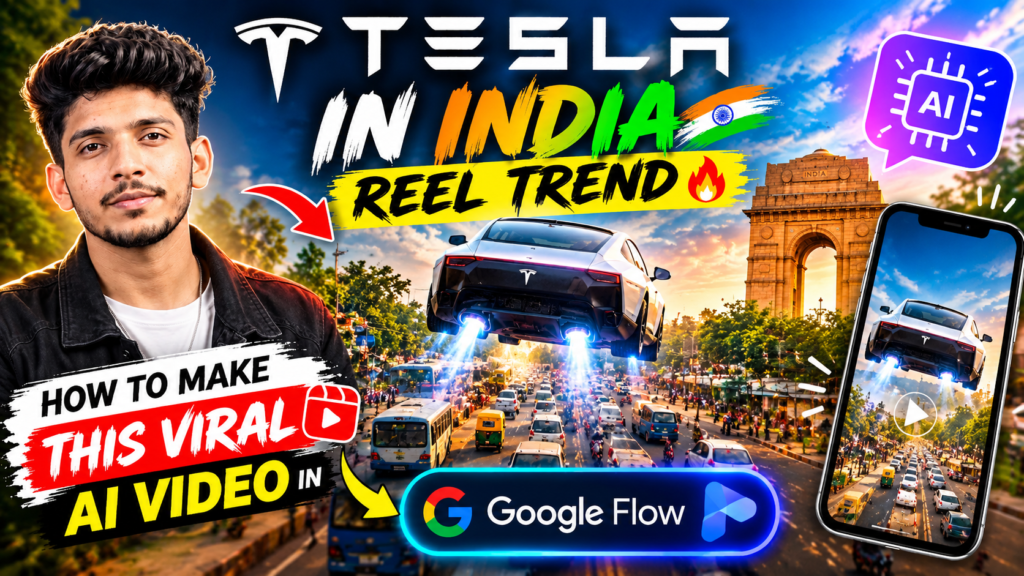
The good news is that you can create your own version of this video with AI video tools such as Google Flow. You can also use your own photo as a reference to create a similar-looking driver.
In this guide, you will learn how the Tesla in India AI video trend works, which tools you need, how to create the video step by step, and how to use the prompt provided below.
Tesla In India Reel Car Prompt
Tesla In India Reel Car Reference Video
What Is the Tesla In India Reel Trend?
The Tesla in India trend is based on a creative and humorous idea. It shows how a futuristic electric car might look and behave on a typical Indian road.
Instead of driving normally, the car uses fictional flying technology to escape traffic. It rises above vehicles and eventually gets caught in a network of overhead electric wires.
The video often includes familiar Indian street scenes, such as:
- Busy roads filled with motorcycles and cars.
- Yellow and green auto-rickshaws.
- Buses, traffic signals, and roadside buildings.
- Electric wires crossing above the road.
- Cinematic camera angles and futuristic blue flames.
Some creators also add black bars with bold text to make the reel look like a movie trailer. You can add similar text during editing if you want that style.
The main attraction is the contrast between a futuristic car and the everyday problems of Indian traffic.
What Does the Tesla AI Video Show?
Before generating your video, it helps to understand the type of scenes you may want to recreate.
| Scene | What Happens |
|---|---|
| Opening | A white futuristic Tesla appears on an Indian road. |
| Rear camera shot | The camera follows the car as it moves forward. |
| Side view | The car accelerates with a cinematic look. |
| Traffic scene | The vehicle moves through a busy street with bikes, cars, and auto-rickshaws. |
| Driver close-up | A relaxed driver sits inside the car wearing sunglasses. |
| Flying moment | Blue flames appear underneath the vehicle, lifting it off the road. |
| Above the traffic | The car floats over the vehicles below. |
| Funny ending | The flying car gets caught among overhead electrical wires. |
| Final shot | The vehicle remains suspended above the street. |
These are useful scene ideas when creating a similar AI video. Your final result may differ depending on the reference video, prompt, and generation settings you use.
Can You Add Your Own Face to the Tesla Video?
Yes, you can try to create a version featuring yourself as the driver by using a clear reference photograph in a compatible Google Flow workflow.
The reference photo helps the AI understand the person’s appearance. However, the result may not perfectly match your face in every frame, so you may need to generate the video more than once.
For better results, follow these tips when selecting your photograph:
- Choose a clear image with your face fully visible.
- Use a photo with good lighting and minimal blur.
- Select a front-facing or slightly angled portrait.
- If you want the driver to wear sunglasses, choose a suitable reference image or describe the sunglasses in your prompt.
- Use your own photo or an image of someone who has given you permission.
You can also experiment with different car colors, road settings, and city backgrounds.
Tools Required to Create the Tesla In India AI Video
You do not need a professional video-editing setup to try this trend. A few AI and editing tools can help you create the main footage and finish the reel.
| Tool | Main Purpose |
|---|---|
| Google Flow | Generate AI video clips using prompts and supported references. |
| Google Gemini | Help write or improve video prompts. |
| ChatGPT | Prepare prompts and develop scene ideas. |
| CapCut | Add text, black bars, music, and final edits. |
| VN Video Editor | Join clips and make simple mobile edits. |
| Midjourney | An optional tool for creating concept images. |
| Leonardo AI | An optional tool for designing futuristic car images. |
Google Flow is the main tool in this tutorial. The other tools are optional and can be used according to your needs and access.
How to Create the Tesla In India AI Video in Google Flow
Follow these steps to make your own version of the trend.
Step 1: Choose a Reference Photo
First, select a clear photograph of yourself if you want to appear as the driver.
Make sure your face is easy to recognize. A well-lit image usually gives the AI more useful visual information than a dark or blurry photograph.
Keep your chosen image ready before opening the video-generation tool.
Step 2: Open Google Flow
Visit Google Flow and start a new project.
Choose an available video-generation workflow that supports your intended reference inputs. The available features and generation options may depend on your account and the current version of the tool.
Step 3: Add Your Reference Images or Video
If your workflow supports reference videos, upload the Tesla reel you want to recreate.
Then add your photograph as the identity reference, if the feature is available.
The reference video can help guide the scene order, vehicle movements, and camera angles. Your photo can help guide the driver’s appearance.
If video references are not supported in your selected workflow, you can create individual scenes using text prompts and suitable reference images instead.
Step 4: Paste the AI Video Prompt
Once your references are ready, enter the prompt below.
It describes the main vehicle, Indian road environment, camera movement, and flying sequence. Adjust the instructions if you want to create a different version.
Tesla In India AI Video Prompt
Copy and use the following prompt in a compatible video-generation workflow:
Recreate the provided reference video as closely as the available video-generation tools allow, using the person from the uploaded reference image as the main driver.
VIDEO SETTINGS
Duration: 10 seconds.
Aspect ratio: Vertical 9:16.
Style: Cinematic, photorealistic, realistic daylight, and smooth camera movement.
PERSON AND IDENTITY
Use the uploaded reference image as the identity reference for the main driver. Preserve the person’s recognizable facial features, skin tone, hairstyle, and overall appearance throughout the video. Do not copy the original driver’s face from the reference video. Keep the driver’s identity consistent in every shot.
REFERENCE VIDEO AND ENVIRONMENT
Follow the supplied reference video for the sequence of scenes, vehicle movement, camera angles, framing, and transitions wherever supported.
Show a futuristic white Tesla Cybertruck-style vehicle on a busy Indian road. Include realistic Indian traffic, motorcycles, auto-rickshaws, cars, buses, roadside buildings, traffic signals, and overhead electrical wires.
Keep the vehicle’s design, shape, proportions, and white color consistent throughout the video.
ACTION AND CAMERA MOVEMENT
Begin with the white vehicle moving along an Indian road. Use smooth tracking shots from the front, rear, and side, following the reference footage as closely as possible.
Show the car moving through a crowded traffic scene. Include a brief interior shot of the driver sitting calmly behind the wheel, wearing dark sunglasses if appropriate to the reference.
Next, show blue fictional jet flames emerging from beneath the vehicle. The car rises above the road and floats over the traffic below.
For the ending, show the vehicle suspended among overhead electrical wires above the street. Keep the driver’s expression calm to create a humorous contrast with the unusual situation.
Maintain consistent lighting, believable shadows, realistic vehicle proportions, and smooth motion between shots.
AUDIO
If the workflow supports reference audio, preserve the original music and timing where permitted. Otherwise, use suitable background music during the editing stage.
VISUAL RESTRICTIONS
Do not change the driver’s identity. Avoid facial distortion, flickering, inconsistent vehicle designs, unnatural movement, and sudden changes in the environment.
Do not add unrelated characters or objects. Do not create additional scenes that are unrelated to the described sequence.
Do not add titles, captions, watermarks, or graphic overlays during generation if you plan to add them yourself in the video editor.
FINAL RESULT
Create a vertical, cinematic AI video featuring a white futuristic electric vehicle on an Indian road. Show the traffic sequence, the fictional flying effect, and the humorous ending involving overhead wires. Keep the driver recognizable and the visual style consistent throughout the clip.
Note: This prompt is a starting point. AI tools may not reproduce every action, frame, or transition exactly. If the entire sequence does not fit into one generation, create shorter clips and combine them later.
Step 5: Generate Your Video
After adding the prompt, start the generation process.
Watch the result carefully to see whether the car, driver, and road environment look consistent.
If the video does not match your idea, improve the prompt by giving clearer instructions about the camera angle, vehicle movement, or specific scene you want to correct.
You may need several attempts to achieve a result you like.
Step 6: Generate Difficult Scenes Separately
A video with multiple actions can be difficult to generate correctly in one attempt.
If the complete video does not look right, divide it into smaller sections.
For example:
- Generate the opening driving scene.
- Create the busy Indian traffic sequence.
- Generate the fictional thruster and flying effect.
- Create the final overhead-wire scene.
You can then arrange the clips in the correct order using a video editor. Try to keep the car’s appearance, lighting, and driver consistent across all clips.
Step 7: Edit the Video in CapCut or VN
Once the clips are ready, import them into your preferred video editor.
Trim unwanted sections, arrange the scenes, and adjust the timing to make the video flow smoothly.
You can also add black bars at the top and bottom if you want a cinematic look. Add bold white text such as “TESLA IN INDIA” during editing if you want to recreate that visual style.
Finally, adjust the music and sound effects, check the video for visual errors, and export it in vertical 9:16 format.
Tips for Making Your AI Video Look Better
Small improvements to your prompt and editing can make a noticeable difference.
1. Describe the road clearly
Mention details such as auto-rickshaws, motorcycles, traffic lights, buildings, and overhead wires. These details help establish the Indian street setting.
2. Explain the camera movement
Instead of simply saying “show the car,” describe whether you want a front tracking shot, a side view, a rear view, or an interior close-up.
3. Keep the vehicle consistent
Repeat the vehicle’s important characteristics when generating separate clips. This can reduce unwanted changes in the car’s appearance.
4. Focus on one main action per clip
Generating the driving scene, flying effect, and wire ending separately can give you more control over the final result.
5. Use a suitable reference image
A clear photograph can help maintain the driver’s appearance. Avoid changing the reference image unnecessarily between clips.
6. Choose the right video format
Use a 9:16 vertical layout for Instagram Reels and YouTube Shorts. Check that the car and main action remain visible on a mobile screen.
7. Add text during editing
If you want complete control over the title and its timing, add text in CapCut or VN rather than asking the video generator to create it.
Common Mistakes to Avoid
Here are some mistakes that can affect the quality of your final video.
- Using a blurry photo: A poor reference image may make it harder to preserve the driver’s appearance.
- Writing a confusing prompt: Too many unrelated instructions can make the result less consistent.
- Changing the car in every clip: Different descriptions may cause the vehicle to look different between scenes.
- Ignoring transitions: Clips with mismatched lighting or movement can look disconnected when joined.
- Adding too many effects: Excessive transitions and sound effects can make the video feel less realistic.
- Using misleading branding: Do not present an AI-generated scene as genuine footage or an official Tesla advertisement.
- Ignoring the final preview: Watch the complete video before posting to catch flickering, distorted faces, or unwanted objects.
Remember that this is a creative AI video concept. The flying vehicle and overhead-wire sequence are fictional, not a demonstration of a real Tesla feature.
How to Make Your Tesla In India Reel More Engaging
If you plan to upload your video to Instagram, focus on making it interesting from the beginning.
Start with an eye-catching scene. Show the futuristic car early instead of using a long introduction.
Keep the video focused. Remove unnecessary pauses and make sure each scene leads naturally into the next.
Save the funniest moment for the ending. The unexpected overhead-wire scene can give viewers a reason to watch until the end.
Choose suitable music. Use audio that fits the speed and mood of the video. Make sure you have permission to use the audio where required.
Write a simple caption. Explain that the clip is an AI creation and invite viewers to share their thoughts.
Use relevant hashtags. Choose a few related tags, such as #TeslaInIndia, #GoogleFlow, #AIVideo, #AIReels, and #InstagramReels. Hashtags do not guarantee views, so focus on the quality of the content as well.
Experiment with posting times. You can test different posting times and compare the results in Instagram Insights to learn when your audience is most active.
Frequently Asked Questions (FAQs)
1. What is the Tesla In India reel trend?
It is a creative AI video concept featuring a futuristic electric car on an Indian road. In the typical version, the vehicle rises above traffic and gets caught among overhead electrical wires.
2. Can I use my own face in the video?
Yes, you can try using your photograph as a reference in a compatible Google Flow workflow. The result depends on the available features and how well the AI maintains your identity.
3. Which tool can I use to create this video?
Google Flow is the main tool discussed in this tutorial. You can use ChatGPT or Gemini to improve the prompt and CapCut or VN to edit the final video.
4. Can I change the car color?
Yes. You can change the prompt to describe a red, black, blue, or another colored futuristic vehicle. However, you may need to repeat the same description across separate clips to maintain consistency.
5. How can I create the flying-car ending?
Describe the vehicle rising above the traffic with fictional blue thrusters. Then generate a separate ending in which the car is suspended among overhead wires. Combine both clips in your editor.
6. What aspect ratio should I use?
Use a vertical 9:16 format for Instagram Reels and YouTube Shorts. Check the export settings before publishing.
7. Can I use someone else’s photo as the driver?
Only use a person’s photograph when you have their permission. Avoid presenting an AI-generated likeness as genuine footage of that person.
8. Will Google Flow recreate the reference video perfectly?
Not necessarily. The output depends on the model, reference inputs, prompt, and available generation settings. You may need to create several clips or try different prompts to get closer to your desired result.
Final Thoughts
The Tesla in India reel is a fun concept for anyone interested in AI video creation. By combining a futuristic vehicle, familiar Indian traffic, and an unexpected flying-car ending, you can make your own entertaining version of the trend.
Start with a clear reference photo, use a detailed prompt, and generate the scenes one at a time if necessary. Then bring everything together in CapCut or VN, add your preferred text and audio, and export the finished reel in vertical format.
Remember that AI results may vary, so take time to review and improve your clips before publishing.
For more AI video prompts, trending reel ideas, and editing tutorials, keep exploring new creative workflows and experiment with your own ideas.

Pratiksha Thakare is a Vedic astrology writer and spiritual researcher with deep study in Jyotish, numerology, and Hindu philosophy. She writes to make ancient wisdom simple and accessible for modern Indian readers.