
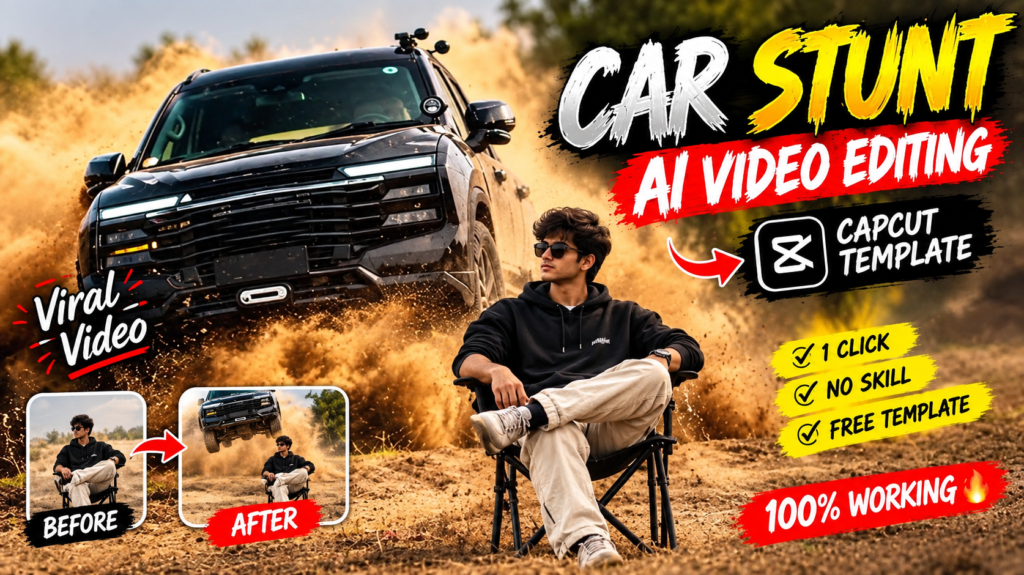
Car Jump AI Video Editing 2026 is becoming a popular creative trend on Instagram, Facebook, and other short-video platforms. In these videos, a person appears to sit calmly in an open location while a car suddenly speeds into the scene, jumps through the air, and lands nearby.
The interesting part is that you do not need to perform a real car stunt. With an AI video generation tool, a suitable reference image, and a well-written prompt, you can create a cinematic-looking flying car jump video from a photo.
This guide explains how the trend works, what type of photo you should use, how to use a reference video, how to write the prompt, and how to improve the final result.
Important: AI-generated videos can look realistic, but they are digitally created. Do not attempt to recreate dangerous car stunts in real life.
Car Jump AI Video Prompt
“`html🎬 Car Jump AI Video Prompt
What Is Car Jump AI Video Editing?
Car Jump AI Video Editing is the process of using artificial intelligence to transform a still image or concept into a short cinematic video.
For example, imagine that you have a photo of yourself sitting on a chair. Instead of keeping the image static, an AI video generator can be instructed to create a scene where:
- You remain seated in the same position.
- A car approaches from behind.
- The vehicle gains speed.
- The car jumps over uneven ground.
- Dust rises when the vehicle moves and lands.
- The camera captures the action like a movie scene.
- You remain calm while the action happens around you.
Think of it like giving an AI video director a photograph, a storyboard, and instructions about what should happen during each second of the video.
The final result depends heavily on the quality of the input image, prompt, reference material, and capabilities of the AI video model.
Why Is the Car Jump AI Video Trend Popular?
There are several reasons why this type of video works well for short-form content.
1. It Creates an Immediate Visual Hook
A normal photograph may not make someone stop scrolling. A car suddenly flying through the frame is much more likely to attract attention.
2. It Looks Like a Movie Scene
Dust, slow-motion movement, dramatic camera angles, realistic lighting, and vehicle motion can give the generated video an action-film appearance.
3. You Can Start With a Simple Photo
You do not necessarily need professional photography equipment. A clear photograph with a suitable pose can provide the starting point for an AI-generated scene.
4. You Can Change the Environment
The same basic idea can be adapted to different locations and moods.
| Video Concept | Possible Environment | Visual Style |
|---|---|---|
| Desert Car Jump | Dry open land | Dusty action scene |
| Mountain Car Jump | Mountain road | Cinematic adventure |
| Off-Road SUV | Rocky terrain | Rugged and powerful |
| Sports Car Jump | Open track | Fast and energetic |
| Night Highway | Dark road | Dramatic and cinematic |
However, remember that changing the environment too much can make it harder for an AI model to preserve the original person and composition.
What Do You Need to Create a Car Jump AI Video?
Before starting, prepare a few basic things.
How to Create a Car Jump AI Video From a Photo
Now let’s go through the process step by step.
Step 1: Prepare Your Photo
Select a clear photograph of yourself or the person you want to feature.
Try to keep the pose simple. If the final scene requires someone sitting on a chair, a photograph with a similar sitting position can make the generation easier.
Step 2: Prepare a Reference Video
If your chosen AI video tool supports reference videos, select a short example that demonstrates the type of movement you want.
For this concept, the reference can show:
- A vehicle approaching.
- A jump or airborne movement.
- Dust or environmental motion.
- A landing.
- The approximate camera perspective.
Always make sure you have the right to use any reference material you upload.
Step 3: Open Your AI Video Generator
Open the AI video-generation platform you plan to use.
If you are using a Google video-generation workflow, follow the current options available in your account because model names, access requirements, generation limits, and features can change over time.
Upload your image and, where supported, add the reference material.
Step 4: Add a Detailed Prompt
Instead of writing something vague such as:
“Make a car jump behind me.”
Give the model more information.
Explain:
- Where the person is sitting.
- What the person is wearing.
- Where the vehicle starts.
- How it approaches.
- When it jumps.
- How it lands.
- What the camera should do.
- What should remain unchanged.
Here is an example prompt:
Car Jump AI Video Prompt
Use the uploaded reference image as the primary identity and appearance reference for the seated person.

Create an approximately 11-second ultra-realistic cinematic stunt video. The person from the reference image is sitting calmly on a black folding chair in a dry, open landscape with dusty, uneven ground.

Preserve the person's recognizable facial appearance, hairstyle, skin tone, body proportions, clothing, and overall identity throughout the video. Keep the person seated confidently with one leg crossed over the other and looking toward the camera.

0–3 seconds:
The person is already seated and remains calm and still. Keep the person's position, chair, clothing, and appearance consistent.

3–6 seconds:
A white luxury SUV approaches from behind the seated person at high speed. The vehicle creates a natural trail of dust as it moves across the uneven ground.

6–8 seconds:
The SUV reaches an uneven section of ground and becomes airborne in a dramatic but physically believable jump. Show realistic vehicle weight, suspension movement, tire motion, and natural momentum.

8–9 seconds:
The SUV lands naturally. Show realistic suspension compression and dust reacting to the impact.

9–11 seconds:
The SUV continues moving past the seated person while dust gradually spreads across the ground. The seated person remains calm and maintains the same position.

Use photorealistic professional-camera footage, natural sunlight, realistic shadows, detailed dust particles, cinematic depth of field, subtle motion blur, realistic vehicle physics, and high visual detail.

Maintain consistent camera perspective, composition, environment, and person placement throughout the video.

Avoid identity drift, facial changes, body deformation, pose changes, clothing changes, chair changes, extra people, duplicate people, floating vehicles, unrealistic physics, sudden scene changes, text, logos, watermarks, cartoon styling, or CGI-like appearance.
Step 5: Generate the Video
After adding the image, reference material, and prompt, start the generation process.
Generation time can vary depending on the platform, model, server demand, account access, video duration, and selected settings.
Do not assume that every generation will take exactly the same amount of time.
Step 6: Check the Result Carefully
When the video is generated, watch it from beginning to end.
Pay attention to:
- Face consistency.
- Hands and fingers.
- Body proportions.
- Car shape.
- Car movement.
- Wheels and suspension.
- Dust effects.
- Background consistency.
- Camera movement.
- Sudden object changes.
AI video generation is not always perfect on the first attempt. If something looks strange, modify the prompt and try again.
Step 7: Add Final Editing
After generating the video, you can use a normal video editor to add finishing touches.
For example, you can add:
- Background music.
- Sound effects.
- Slow-motion sections.
- Text overlays.
- Color adjustments.
- Intro or outro effects.
- Appropriate transitions.
For a car stunt concept, subtle engine, tire, wind, and impact sounds can make the result feel more immersive.
| Requirement | Why It Matters |
|---|---|
| Clear personal photo | Helps the AI understand the person’s appearance |
| AI video generator | Creates motion from the image and instructions |
| Detailed video prompt | Explains the desired action |
| Reference video | Can help communicate movement and timing |
| Stable composition | Reduces unwanted changes between frames |
| Good lighting | Makes the generated scene more consistent |
A reference video is particularly useful when you want the AI to understand the general movement of the stunt.
The reference should be used as a visual guide for motion and composition, rather than something you simply copy frame-for-frame.
How to Choose the Right Photo
The photograph you upload can make a major difference to the final result.
For the best chance of getting a consistent output, try to use a photo that has:
- A clearly visible face.
- Good lighting.
- A reasonably sharp image.
- A complete or mostly visible body.
- A simple background.
- A natural sitting or standing pose.
- Clothing that you want to keep throughout the video.
Avoid extremely blurry photographs, heavily edited portraits, group photos, or images where the face is partly hidden.
For example, if you want the generated video to show you sitting on a black chair, it is better to start with a photograph where your body position is already close to the desired pose.
Why Does the Photo Matter So Much?
Imagine asking a painter to reproduce a person’s face from a tiny, blurry photograph. The painter has to guess many details.
AI video models face a similar problem. If the reference image does not provide enough visual information, the generated person’s face, hairstyle, clothing, or body proportions may change.
That is why a clean source image is one of the most important parts of the workflow.
Common Problems and How to Improve Them
AI-generated videos can sometimes contain visual mistakes.
| Problem | Possible Reason | What You Can Try |
|---|---|---|
| Face changes | Weak or unclear reference image | Use a clearer photo and emphasize identity consistency |
| Car looks distorted | Complex vehicle movement | Simplify the action and describe realistic motion |
| Person moves unexpectedly | Prompt lacks pose instructions | Clearly state that the person remains still |
| Dust looks unrealistic | Too many effects | Ask for natural environmental dust |
| Background changes | Too much scene variation | Keep location and camera instructions consistent |
| Vehicle floats | Physics are unclear | Describe weight, suspension, momentum, and landing |
| Extra people appear | Scene is too open | Explicitly request no additional people |
One important point is that a long
Table of Contents

Pratiksha Thakare is a Vedic astrology writer and spiritual researcher with deep study in Jyotish, numerology, and Hindu philosophy. She writes to make ancient wisdom simple and accessible for modern Indian readers.