
AI video generation and editing tools have evolved rapidly. Today, you no longer need expensive motion-tracking gear or high-end VFX software to place yourself into any video scene. With accessible tools like ChatGPT and Google Flow, anyone can seamlessly replace a subject in a video with their own digital avatar.
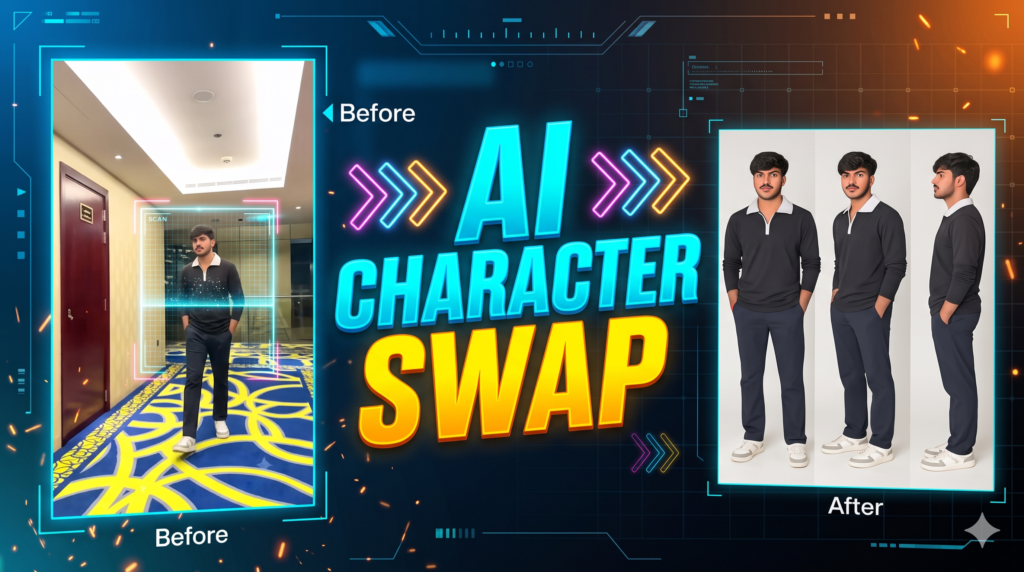
In this comprehensive guide, we break down the entire workflow step by step, explain how to generate consistent character turnaround sheets, and guide you on using video prompts to achieve realistic results.
VIRAL VIDEO PROMPT
“`html🎬 AI Video Generation Prompt
What Is AI Character Swapping?
AI character swapping is a workflow where the identity, facial features, and outfit of a subject in a source video are replaced with another person’s likeness while preserving the original camera movement, lighting, motion, and background.
Instead of traditional deepfakes that only swap faces, modern generative models can track entire body movements, cloth physics, and perspective angles to generate a cohesive new subject inside the scene.
Step 1: Generate a Character Sheet in ChatGPT
Consistency is the biggest challenge in AI generation. If the model only knows what your face looks like from the front, it cannot accurately animate side profiles or back turns. Generating an orthographic character sheet solves this issue.
- Open ChatGPT: Launch the ChatGPT app or web interface.
- Upload a Clear Photo: Choose a well-lit, front-facing portrait or full-body photograph with neutral lighting and minimal clutter in the background.
- Use the Character Sheet Command: Type
/charactersheetor instruct the model to produce a multi-angle turnaround sheet (including front view, side profile, three-quarter view, and close-up portraits). - Download the Asset: Save the final generated image containing all perspective angles onto your device.
Step 2: Set Up Google Flow
Google Flow is a generative video studio that allows users to drive animations using reference images, prompts, and motion templates.
- Access Google Flow: Search for
Flow AIon Google or navigate directly toflow.google.com. - Log In: Sign in with your Google account credentials to access the workspace dashboard.
- Familiarize with the Canvas: You will find an input box for your prompt along with media attachment controls for source videos and reference images.
Step 3: Upload Assets and Configure Video Parameters
To execute a character replacement, Google Flow requires two primary inputs: your visual identity reference and the motion reference video.
- Click the Plus (+) Icon: Open the media upload menu.
- Upload Your Character Sheet: Attach the multi-angle image downloaded from ChatGPT.
- Upload the Reference Video: Add the target video clip whose actor or subject you want to replace.
- Adjust Resolution and Length: Select your desired output quality (e.g., 720p or 1080p) and clip duration.
Step 4: Write and Apply the Video Prompt
The prompt instructs the model to decouple the motion from the visual identity of the original video.
Here is an example prompt structure:
“Use the provided reference video ONLY as a motion, camera, timing, and performance reference, and use the provided target character sheet image as the absolute visual identity reference. Generate a photorealistic video matching the scene lighting, environment, and movement precisely.”
Paste the prompt into the creation box and initiate the generation process.
Step 5: Review and Export the Output
Once processing completes:
- Preview the clip to ensure the character’s face, hair, and clothing remain consistent during fast movements or turns.
- Check edge blending around the feet and dynamic shadows.
- Download the final MP4 video for publishing on platforms like Instagram Reels, TikTok, or YouTube Shorts.
Best Practices for Best Results
- High-Quality Source Footage: Ensure the reference video has clear, steady camera work and good lighting.
- Matching Proportions: Pick reference videos featuring subjects with similar body proportions to your character sheet to prevent limb distortion.
- Accurate Aspect Ratios: Match the aspect ratio of the generation canvas (9:16 for vertical reels, 16:9 for landscape) to your source video.
Resources and Downloads
For the exact video prompt template and the sample reference clip used in this tutorial, visit astrofite and open the dedicated tutorial post to download all project assets.

Pratiksha Thakare is a Vedic astrology writer and spiritual researcher with deep study in Jyotish, numerology, and Hindu philosophy. She writes to make ancient wisdom simple and accessible for modern Indian readers.